Click " Skip Ads " to view this page

Saferich.biz
Watch TVKim.com Search Komando.com 1,000 + Free Downloads Shop Kim's Store More Free Cool Sites
Kim Komando
Kim KomandoSign-up for Kim's Club Now

April 12, 2012

Feeling crafty?

If you're the kind of person who holds on to old bottles so you can turn them into bird feeders, I've got just the site for you!

It's called Craftgawker, and it's a collection of clever ideas for crafts - sort of like a combination of Etsy and Pinterest. You can browse hundreds of unique do-it-yourself projects.

Each has step-by-step instructions featuring clear photos. Many of the ideas on Craftgawker are really quite ingenious. And most of them are actually pretty easy to pull off.

Maybe you're already a crafty genius. If so, why not share your knowledge by posting your brilliant creations on Craftgawker?

CLICK HERE to visit today's cool site now >>

Screen shot of: http://www.komando.com/coolsites/index.aspx?id=12339

The text: Find it fast links. Daily Freebies @ komando.com with a curved arrow pointing to komando.com
Bullet in the form of a curved arrowApp of the Day

All aboard the vintage photo train! Find out which hugely popular photography app is on Android now.
CLICK HERE TO FIND OUT MORE >>

Bullet in the form of a curved arrowNews of the Day

Keep up to date on all things digital with the Daily News at Komando.com. You'll find easy, fast video news releases, too!
CLICK HERE TO FIND OUT MORE >>

Bullet in the form of a curved arrowFREE Download of the Day

Your browser's built-in spell checker isn't the best. Download this free tool to check all of your online writing for grammar and spelling mistakes.
CLICK HERE TO FIND OUT MORE >>

Bullet in the form of a curved arrowTip of the Day

Some sites advertise the latest and greatest smartphones for pennies. I tell you whether these deals are as good as they seem.
CLICK HERE TO FIND OUT MORE >>

Bullet in the form of a curved arrowDigital Minute of the Day

(Kim's Club members only--join now!)
Do you have a friend who seems addicted to Facebook? Tune in to learn the surprising - and worrisome - reason why it may be true.
CLICK HERE TO FIND OUT MORE >>

Bullet in the form of a curved arrowVideo of the Day

Forget Nostradamus, this author's predictions are right on the money. Watch the writer of 2001: A Space Odyssey predict the dominance of the personal computer, 20 years before it took over!
CLICK HERE TO FIND OUT MORE >>

advertisement

iHealth Blood Pressure Monitor

advertisement

Relax & Restore with Carbonite!


advertisement

New Security Cameras! Save up to 20 percent!

What's 'new' in the new iPad?

Play

WHAT'S 'NEW' IN THE NEW IPAD?

Apple hopes the new iPad might just be the end of the PC. From its new razor-sharp display to an improved camera and faster speed ? I'll show you why they might be right.

RC camera captures African wildlife

Play

KIM'S VIDEO FAVORITES: RC CAMERA CAPTURES AFRICAN WILDLIFE

These two brothers created a radio controlled camera to capture Tanzanian wildlife up close. The animals' reactions are priceless. The elephants, though, weren't very amused.

digital circuit finder

Buy

DIGITAL CIRCUIT FINDER

Identify the correct circuit breaker in seconds!

Sponsored Links

Get 2 FREE months of Carbonite

I trust my photos, files, and memories to Carbonite Online Backup. You should too. Hard drives die. You need a backup. Sign up now for your free 15-day trial. No credit card required. Get 2 months free if you decide to buy.

carbonite.com/kim

One call can lower your mortgage today

Keep money in your pocket. Take advantage of today's low interest rates. Call Quicken Loans at 1-800-QUICKEN. Or use their online tools. Equal housing lender.

quickenloans.com/home-loans

Access Your Mac or PC from Anywhere

The world's best remote access software now gives you access to all your files and applications on your computer from your iPad! Try GoToMyPC FREE for 45 days!

gotomypc.com/s/kim

Try me for a month!

Watch my show live or on-demand! Listen on your schedule. Have your questions answered on my message board and more. All for less than $5 per month. I know you'll love it.

komando.com/kimsclub

Not a Member of Kim's Club yet?
Join Kim's Club today!

Follow me on the web
FacebookTwitterYoutube

Advertise | Advertiser Comments | Sign Up for our Email Alerts | Privacy Policy | Terms and Conditions

To unsubscribe or modify your subscription, use our online form.

Copyright © 2012 Weststar Digital Audio, Inc. All Rights Reserved.

Please add kimcoolsitereply@lyris.komando.com to your address book ensure Kim's emails reach your inbox.

To view this email as a Web page, go here.

Jkwebtalks


WinPlusX Brings Windows 8 Win+X Menu In Windows 7, Vista and XP

Posted: 11 Apr 2012 09:53 AM PDT

Unlike previous versions of Windows, the newly released Windows 8 CP has several new quick access shortcuts for doing things quickly and effortlessly. For example, the new Win + X shortcut key brings 'System Utility Settings' menu, which includes several system utilities including Network Connections, Device Manager, Event Viewer, Disk Management, and many more in Windows 8. You can bring the same feature to Windows XP, Vista and Windows 7 with a free utility WinPlusX. WinPlusX is a free...

Read rest of this article at JkWebtalks.com

OS X Daily: “8 Great Ways to Use Air Display & iPad” plus 2 more

Link to OS X Daily

8 Great Ways to Use Air Display & iPad

Posted: 11 Apr 2012 09:36 AM PDT

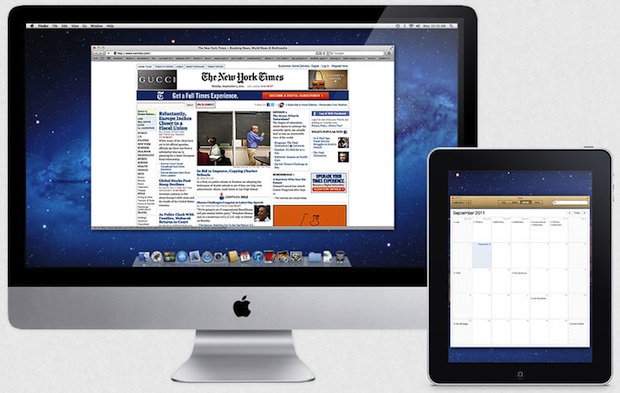
Mac with Air Display on iPad

If you saw our Air Display review you’ll know it’s a pretty awesome app that lets you turn an iPad into an external display for a Mac or PC ($10 on the App Store). If you bought it and haven’t figured out what to do with it yet, here are eight of our favorite ways to use Air Display as an auxiliary screen.

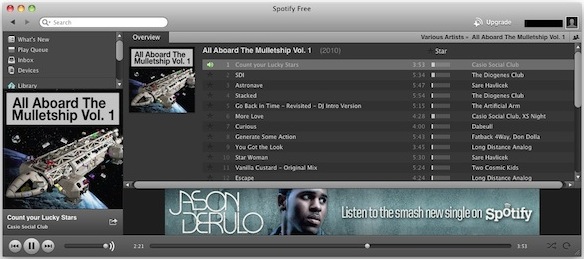
  1. Dedicated Music Player – Listening to music while you work is a must for many of us. If your favorite music client is in OS X than why not offload the app to the external iPad display? iTunes, Spotify, Pandora, Rdio, whatever you use, you’ll save valuable screen real estate and have an easier time switching through songs
  2. Mac Spotify client

  3. App Launcher, Tool Panel, & Dock Holder – Move the OS X Dock and apps tool panels over to the iPad screen and you can save some screen real estate, this is especially helpful for smaller laptop screens
  4. Dedicated RSS Reader – News junkies can never miss a beat by throwing their favorite RSS reader onto the Air Display screen, this lets you keep a constant eye on the latest posts from your favorite publications without cluttering up your main screen or having to switch windows on the Mac
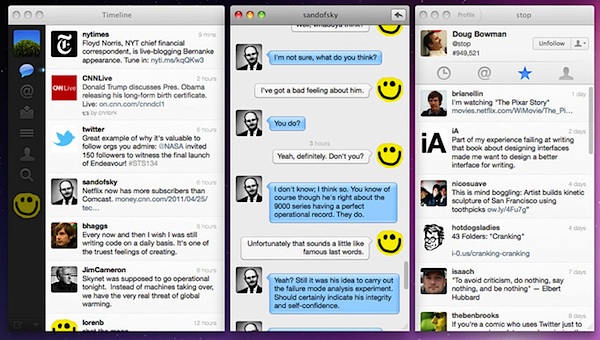
  5. Twitter Monitoring – Twitter has a myriad of uses beyond tweeting that Instagrammed picture of your breakfast. It’s one of the best ways to monitor brands, sports, news, sentiment, pop culture, your favorite people, and a million other things. Follow some worthwhile Twitterers (starting with @OSXDaily of course) and throw your Twitter client on the Air Display to stay in the loop.
  6. Twitter for Mac

  7. Dedicated Chat Screen – Whether it’s Messages, iChat, FaceBook Messenger, or IRC, if you spend a lot of time talking online, pushing that window to another screen is a great way to free up your main display real estate while still keeping active in chat
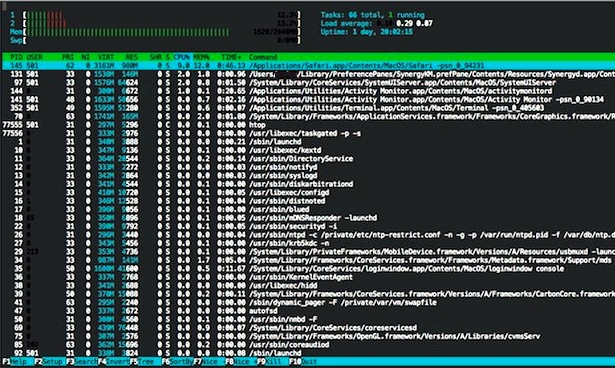
  8. System & Resource Monitoring – GUI utilities like Activity Monitor and command line tools like htop, iotop, and top are excellent ways to keep an eye on system resources. This is most useful for advanced users, but it also just looks cool to have a screen full of crazy terminal stuff flying around
  9. htop for OS X

  10. Watching Logs – Open Console app and watch local system logs, or use the Terminal with tail -f to follow other logs and files as they update live. This is probably most useful to advanced users, but you can also pretend to be very busy while daydreaming at work or school by having a screen full of active system logs
  11. All of the Above – Mix and match a few of the options up top to get the best of everything. Throw an htop window at the top and a slim iTunes window at the bottom, or whatever other combination of auxiliary screens you can come up with

You’ll notice anything graphics intensive isn’t mentioned in this list because Air Display has to transmit all data through wi-fi. That connection doesn’t provide for precision tracking or smooth playback of video, so we chose things that work perfectly given the apps limitations. If you have any other ideas or uses for Air Display and the iPad, let us know in the comments.


Spilling Coffee on the iPad Smart Cover Looks Surprisingly Attractive

Posted: 11 Apr 2012 09:12 AM PDT

Coffee iPad Cover

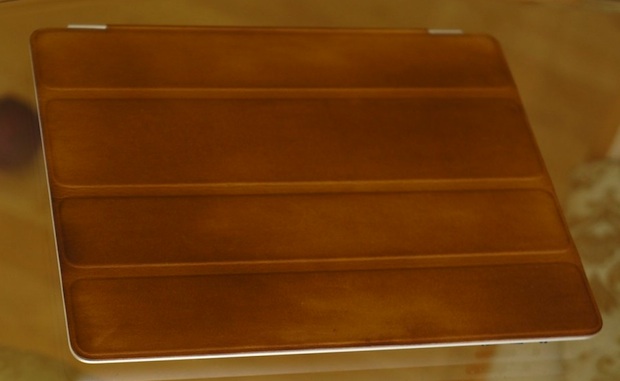
Spilling coffee on something is generally considered a bad thing, but not if you have a brown leather iPad Smart Cover. TwoLivesLeft accidentally got some coffee on their iPad case, and then had the hilarious epiphany “I had a wonderful, horrible idea: I'd stain the cover with coffee“. The result? A surprisingly attractive appearance that looks like beautifully refined leather, akin to something dug out of an old dusty library.

You can see how to make your very own coffee stained Smart Cover at TwoLivesLeft, it involves painting the smart cover with coffee and then rubbing crushed beans all over it.

Speaking from my own experience of spilling coffee on porous things, the Smart Cover will undoubtedly smell like liquid crack for a very long time. Whether that’s a bad thing is your call, but I won’t be trying this myself. if you’re brave enough to give it a go we’d love to hear about it.

Coffee stained smart cover

Fascinating discovery by CultOfMac, best of luck to anyone who tries this.


Is It Better to Shut Down, Sleep, or Leave a Mac Turned On When Not Being Used?

Posted: 10 Apr 2012 11:49 AM PDT

Should a Mac go to Sleep, Shutdown, or Stay On?

When it’s not in use, do you shut down your Mac, put it to sleep, or just keep it turned on? Is one choice better than the others? Why and why not? These are great questions, so let us review the choices and why you may want to choose one over the other.

Sleeping a Mac

This is my preferred choice because it provides for the easiest and fastest way to resume work while still maintaining hardware. It’s practically instantaneous to sleep a Mac and when you wake it up all of your open apps, documents, window arrangements, and web pages, are exactly where you left off with practically no delay. For the average Mac user who wants to quickly get back to what they were doing, sleeping is perfect.

  • Pros: Quickly resume exactly where you left off; sleep and wake can be scheduled or even done remotely
  • Cons: Minor power consumption; system temp, swap, and cache files don’t get cleared out during reboot process; system updates requiring reboots don’t install automatically without a manual reboot; performance is best for Macs with 4GB RAM or more

If you use the Mac every day, simply putting it to sleep when it’s not in use or overnight is probably the best choice. Just be sure to remember to reboot every once in a while to allow system software updates to install as part of a general maintenance routine, though waiting for an OS X Update or Security Update is generally a sufficient time between reboots. You can also gather some gigantic uptimes with this approach which is pretty much a useless statistic other than the nerdy bragging rights, (I’m currently at 35 days, weeeee!) but hey it’s fun to check anyway.

Shutting the Mac Down

I basically never shut down a Mac unless it’s going into a longer term state of inactivity or storage. Shutting down a Mac is slower since all open applications and documents have to quit, and then when you turn the machine back on everything has to re-open again to get back to where you were prior to shutdown. OS X Lion made resuming past application states much simpler with the automatic window restore feature (which some dislike and choose to disable), but I still find it too slow to be usable for my instant-on demands.

  • Pros: Saves power, doesn’t strain hardware; system temp, memory, swap, and cache files get cleared out during boot; allows for major system updates to install
  • Cons: Takes a while to boot up and resume previous activity, no geeky uptime bragging rights

For the power conscious or for those trying to squeeze the absolute longest lifespan out of hardware and hard disks, shutting down when not in use is the best choice. This is also what you’ll want to do if you’re going to put a Mac in longterm storage, won’t be using it for a longer than a few days, or if you’re going to be traveling with a Mac that isn’t in use during the travel period.

Keeping a Mac Always Turned On

Leaving a Mac constantly turned on is another viable option, though I think it’s best reserved for Macs that function as servers. This approach also carries the most polar advantages and disadvantages. On the plus side, you don’t have to bother resuming anything since it’s already on, you can schedule all maintenance and backup tasks to occur in the wee hours of system inactivity, and it allows for something like a constantly available SSH server or media center to be running on the machine. The downsides are basically the constant power consumption and the constantly active hardware, which can limit overall lifespans of the computer components.

  • Pros: No waiting for use; instantly resume all apps and tasks exactly where you left off; allows for servers to run with constant accessibility; backup and system maintenance tasks can be scheduled for off hours
  • Cons: Constant power consumption; more wear and tear on hard drives, fans, and physical hardware due to possible heat

If you’re running a server or media center, leaving a Mac turned on constantly is a no brainer. For the casual Mac user, it’s probably best to put a Mac to sleep when it’s not in use though, it gives hard drives and fans a rest, and will generally lead to a longer lifespan of the computer.

What do you do and why? Let us know your thoughts and habits in the comments.


top