Click " Skip Ads " to view this page

Saferich.biz
Watch TVKim.com Search Komando.com 1,000 + Free Downloads Shop Kim's Store More Free Cool Sites
Kim Komando
Kim KomandoSign-up for Kim's Club Now

April 5, 2012

The new phone book

When was the last time you used the white pages? The Internet has made the old-school phone book obsolete.

Unfortunately, knowing your neighbors is also slowly going the way of the buffalo. Here's a website that combines the phone book with modern social networking technology to help you build relationships with the people you see every day.

White Pages Neighbors uses the phone directory to show you a satellite map of the people who live near you. You can automatically send out invites to a block party or connect using Facebook.

White Pages obtains its information from public sources and third-party data suppliers. Any of your information can be removed or changed at any time.

CLICK HERE to visit today's cool site now >>

Screen shot of: http://www.komando.com/coolsites/index.aspx?id=12306

The text: Find it fast links. Daily Freebies @ komando.com with a curved arrow pointing to komando.com
Bullet in the form of a curved arrowApp of the Day

The Masters Golf Tournament is one the premiere events in sports. Don't miss a putt. Catch all the action on the go.
CLICK HERE TO FIND OUT MORE >>

Bullet in the form of a curved arrowNews of the Day

Keep up to date on all things digital with the Daily News at Komando.com. You'll find easy, fast video news releases, too!
CLICK HERE TO FIND OUT MORE >>

Bullet in the form of a curved arrowFREE Download of the Day

Did you know there are more than 40 different types of Solitaire? Try some new twists on the classic card game.
CLICK HERE TO FIND OUT MORE >>

Bullet in the form of a curved arrowTip of the Day

How many gadgets are in your life? Are your browser bookmarks different on each one? Here are some ways to sync your bookmarks on every gadget.
CLICK HERE TO FIND OUT MORE >>

Bullet in the form of a curved arrowDigital Minute of the Day

(Kim's Club members only--join now!)
Baseball's regular season is officially underway! Tune in to learn about an amazing app that will help you enjoy every second.
CLICK HERE TO FIND OUT MORE >>

Bullet in the form of a   curved arrowVideo of the Day

What would you do to avoid helping a buddy lift his heavy washing machine? Watch as this man turns his friend's appliances into helicopters!
CLICK HERE TO FIND OUT MORE >>

advertisement

Relax & Restore with Carbonite!


advertisement

Save 20 percent on my best emergency weather gear

Organize your e-books for free

Play

ORGANIZE YOUR E-BOOKS FOR FREE

You can carry around thousands of books on your e-reader. Learn how to organize that library fast -- for free.

A new take on the Muppet Theme Song

Play

KIM'S VIDEO FAVORITES: A NEW TAKE ON THE MUPPET THEME SONG

He created Sesame Street to educate preschoolers. But The Muppet Show was Jim Henson's spoof on TV variety shows. One of the best parts of the program was the opening theme song.

universal remote adapter for iPhone

Buy

UNIVERSAL REMOTE ADAPTER FOR IPHONE

Turn your iPhone into a remote control for your TV, DVR & more!

Sponsored Links

Get 2 FREE months of Carbonite

I trust my photos, files, and memories to Carbonite Online Backup. You should too. Hard drives die. You need a backup. Sign up now for your free 15-day trial. No credit card required. Get 2 months free if you decide to buy.

carbonite.com/kim

One call can lower your mortgage today

Keep money in your pocket. Take advantage of today's low interest rates. Call Quicken Loans at 1-800-QUICKEN. Or use their online tools. Equal housing lender.

quickenloans.com/home-loans

Access Your Mac or PC from Anywhere

The world's best remote access software now gives you access to all your files and applications on your computer from your iPad! Try GoToMyPC FREE for 45 days!

gotomypc.com/s/kim

Try me for a month!

Watch my show live or on-demand! Listen on your schedule. Have your questions answered on my message board and more. All for less than $5 per month. I know you'll love it.

komando.com/kimsclub

Not a Member of Kim's Club yet?
Join Kim's Club today!

Follow me on the web
FacebookTwitterYoutube

Advertise | Advertiser Comments | Sign Up for our Email Alerts | Privacy Policy | Terms and Conditions

To unsubscribe or modify your subscription, use our online form.

Copyright © 2012 Weststar Digital Audio, Inc. All Rights Reserved.

Please add kimcoolsitereply@lyris.komando.com to your address book ensure Kim's emails reach your inbox.

To view this email as a Web page, go here.

OS X Daily: “App Store Not Working or Showing Updates? How to Refresh the App Stores” plus 3 more

Link to OS X Daily

App Store Not Working or Showing Updates? How to Refresh the App Stores

Posted: 04 Apr 2012 10:44 AM PDT

Refresh App Store

Need to refresh the App Store or iTunes Store? Hit Command+R at any screen in the iTunes, iOS, or Mac App Store, and the page will reload with whatever new data awaits, whether it’s a revised Top Charts listing or just to see the latest Featured apps. You can refresh any screen in any of the Apple iTunes or App Stores with this method,

Reloading an App Store page is also an easy way to resolve quite a few common issues, like when the App Store claims to be inaccessible, new app updates aren’t displaying, or when recently purchased items are missing from the Purchased list. If something is still not appearing in the purchases list after a refresh, it could be hidden, here’s how to unhide it.

Note this is for the desktop versions of the App Store, on the iOS side you can typically just quit and relaunch iTunes or App Store to resolve any problems. If that doesn’t work, you may need to manually force quit the App Store itself or even reboot the device to fix stalled downloads and force updates to the page.


3 Free & Quick Do-It-Yourself iPad Stands

Posted: 04 Apr 2012 09:34 AM PDT

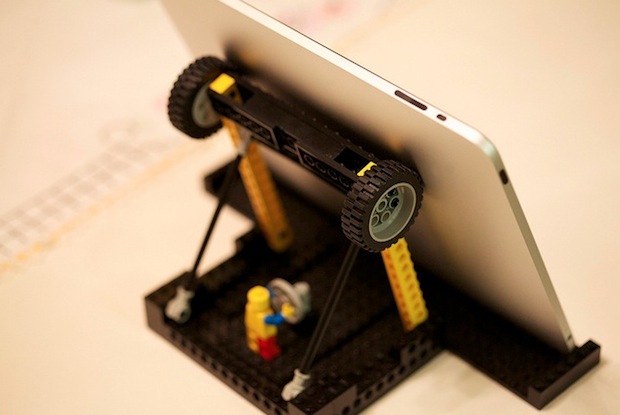
Lego iPad stand

I carry my iPad around naked, that means no cases, no covers, no stands, just the iPad. But what if you’re on the go and quickly need an iPad stand? I was recently in this situation and discovered several different methods to concoct quick and dirty iPad stands for free using common items. I picked the three best choices based on the likelihood of encountering the required materials, you won’t win any design awards here but if you’re in a pinch you should find one that works for you:

1. DVD Case: The first solution uses a DVD jewel case and is surprisingly stable. It takes about 30 seconds to setup, all you need is a plastic DVD case and a piece of string, cloth, ribbon, or wire. Basically just invert the DVD case and tie the string from one side to the next, then flip the little plastic tabs up to form feet to rest the iPad on. If you can’t imagine how that might work, watch the video below, it’ll all make sense:

The DVD case is my preferred method and looks the most reasonable, and it finally provided a use for a friends 10 year old Blockbuster DVD that was never returned. You won’t always have access to DVD cases though, and in that case, method two or three may be a better fit.

2. Coat Hanger: Wire coat hangers are ubiquitous and you should be able to find one in nearly any household or hotel room, making this a reasonable albeit flimsier option for those in dire need of a quick iPad stand. It’s ugly but is actually quite supportive, though the iPad may slide around a bit on the wire frame. Watch the video below beforehand, it’s not complicated but it’ll prevent you from wasting a hanger or two trying to figure it out on your own.

3. Legos: If you’re visiting somewhere with a kid (or kid at heart) who plays with Legos, you can build a quick iPad stand out of Lego blocks. There’s no video instructions but you’ll find a fully configured stand on Flickr that’s fairly easy to follow to base your own from. This is obviously the most time consuming of the three options, but it gives you a great excuse to play with Legos so that’s a plus, right?

DIY Lego iPad stand

You could also try out the mini-plunger stand we jokingly posted on April Fools, some of the commenters claim it actually works well.


Switch Sends All Tabs & Windows to a Different Web Browser in Mac OS X

Posted: 03 Apr 2012 04:08 PM PDT

Switch Tabs to a Different Web Browser

If you spend a lot of time switching between web browsers for development or for whatever other reason, you’ll find Switch useful. Switch is a handy free menu bar utility that transfers all browser tabs and windows between web browsers in Mac OS X. Whether you use Safari, Chrome, or Firefox, you can easily send whatever the active windows are to a different browser and back again just by pulling down the menu and selecting “Transfer to” that app.

Install Switch to find a new menu bar item, then you need to right-click the icon to activate the pull-down menu to find the browsers to switch to. Within Switch preferences, you can also select a default browser to transfer to, that allows you to just click the menu bar icon itself to send all active windows there. You must use switch from an active browser window in order for it to work, or else you will get an error that says “Cannot transfer from current application”.

Thanks for the tip Joseph


Attach a Photo to a Mail Message on iPhone, iPad, and iPod touch

Posted: 03 Apr 2012 12:23 PM PDT

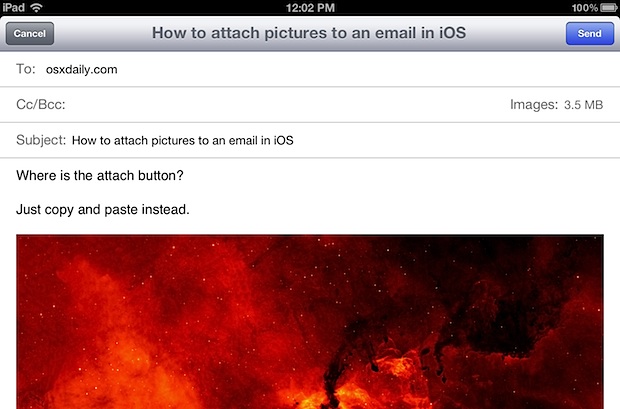
Attach Photo to Mail on iPhone, iPad, or iPod touch

You’ve probably noticed there isn’t an attachment button when composing a new email message in iOS, so how do you attach pictures to mail on an iPhone, iPad, or iPod touch? The easiest way is to use Copy and Paste, here’s what you’ll want to do:

  • Compose a new mail message as usual, then hit the Home button and launch the Photos app
  • Locate the picture you want to attach to the email and tap to open it
  • Tap and hold on the image until you see “Copy” and tap to copy it
  • Copy Image to use as Mail attachment in iOS

  • Use a four-fingered swipe up or double-tap the Home button to bring up the multitasking bar, and select the Mail app to switch back to your mail message
  • Back in the mail composition window, tap in the mail body and hold until you see “Paste”, select that to insert the picture into the email as an attachment
  • Paste a photo into mail message in iOS

  • Compose the remainder of the email as usual and tap “Send”

You can add up to five photos as attachments, though if you plan on sending multiple pictures it’s better to start from Photos app instead of Mail app because you can compose a new message containing several photos directly from there.

This is the source of some confusion for new iPad and iPhone users, and I have fielded this question several times in person to newcomers to the iOS platform. Hopefully a future version of Mail will include a more direct way of adding mail attachments to prevent some of the friction.


top