


OS X Daily: “App Store Not Working or Showing Updates? How to Refresh the App Stores” plus 3 more |  |

- App Store Not Working or Showing Updates? How to Refresh the App Stores
- 3 Free & Quick Do-It-Yourself iPad Stands
- Switch Sends All Tabs & Windows to a Different Web Browser in Mac OS X
- Attach a Photo to a Mail Message on iPhone, iPad, and iPod touch
| App Store Not Working or Showing Updates? How to Refresh the App Stores Posted: 04 Apr 2012 10:44 AM PDT
Need to refresh the App Store or iTunes Store? Hit Command+R at any screen in the iTunes, iOS, or Mac App Store, and the page will reload with whatever new data awaits, whether it’s a revised Top Charts listing or just to see the latest Featured apps. You can refresh any screen in any of the Apple iTunes or App Stores with this method, Reloading an App Store page is also an easy way to resolve quite a few common issues, like when the App Store claims to be inaccessible, new app updates aren’t displaying, or when recently purchased items are missing from the Purchased list. If something is still not appearing in the purchases list after a refresh, it could be hidden, here’s how to unhide it. Note this is for the desktop versions of the App Store, on the iOS side you can typically just quit and relaunch iTunes or App Store to resolve any problems. If that doesn’t work, you may need to manually force quit the App Store itself or even reboot the device to fix stalled downloads and force updates to the page.
|
| 3 Free & Quick Do-It-Yourself iPad Stands Posted: 04 Apr 2012 09:34 AM PDT
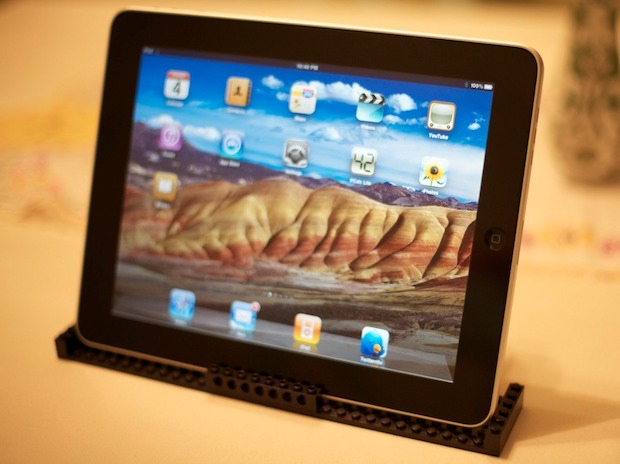
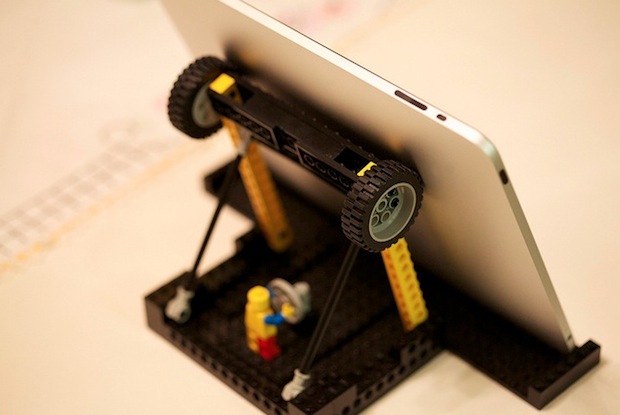
I carry my iPad around naked, that means no cases, no covers, no stands, just the iPad. But what if you’re on the go and quickly need an iPad stand? I was recently in this situation and discovered several different methods to concoct quick and dirty iPad stands for free using common items. I picked the three best choices based on the likelihood of encountering the required materials, you won’t win any design awards here but if you’re in a pinch you should find one that works for you: 1. DVD Case: The first solution uses a DVD jewel case and is surprisingly stable. It takes about 30 seconds to setup, all you need is a plastic DVD case and a piece of string, cloth, ribbon, or wire. Basically just invert the DVD case and tie the string from one side to the next, then flip the little plastic tabs up to form feet to rest the iPad on. If you can’t imagine how that might work, watch the video below, it’ll all make sense: The DVD case is my preferred method and looks the most reasonable, and it finally provided a use for a friends 10 year old Blockbuster DVD that was never returned. You won’t always have access to DVD cases though, and in that case, method two or three may be a better fit. 2. Coat Hanger: Wire coat hangers are ubiquitous and you should be able to find one in nearly any household or hotel room, making this a reasonable albeit flimsier option for those in dire need of a quick iPad stand. It’s ugly but is actually quite supportive, though the iPad may slide around a bit on the wire frame. Watch the video below beforehand, it’s not complicated but it’ll prevent you from wasting a hanger or two trying to figure it out on your own. 3. Legos: If you’re visiting somewhere with a kid (or kid at heart) who plays with Legos, you can build a quick iPad stand out of Lego blocks. There’s no video instructions but you’ll find a fully configured stand on Flickr that’s fairly easy to follow to base your own from. This is obviously the most time consuming of the three options, but it gives you a great excuse to play with Legos so that’s a plus, right?
You could also try out the mini-plunger stand we jokingly posted on April Fools, some of the commenters claim it actually works well.
|
| Switch Sends All Tabs & Windows to a Different Web Browser in Mac OS X Posted: 03 Apr 2012 04:08 PM PDT
If you spend a lot of time switching between web browsers for development or for whatever other reason, you’ll find Switch useful. Switch is a handy free menu bar utility that transfers all browser tabs and windows between web browsers in Mac OS X. Whether you use Safari, Chrome, or Firefox, you can easily send whatever the active windows are to a different browser and back again just by pulling down the menu and selecting “Transfer to” that app. Install Switch to find a new menu bar item, then you need to right-click the icon to activate the pull-down menu to find the browsers to switch to. Within Switch preferences, you can also select a default browser to transfer to, that allows you to just click the menu bar icon itself to send all active windows there. You must use switch from an active browser window in order for it to work, or else you will get an error that says “Cannot transfer from current application”. Thanks for the tip Joseph
|
| Attach a Photo to a Mail Message on iPhone, iPad, and iPod touch Posted: 03 Apr 2012 12:23 PM PDT
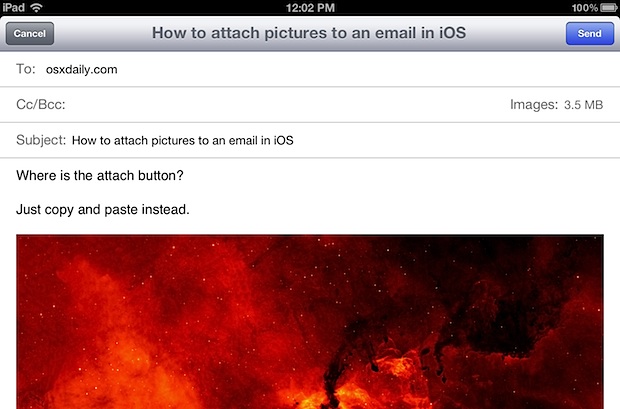
You’ve probably noticed there isn’t an attachment button when composing a new email message in iOS, so how do you attach pictures to mail on an iPhone, iPad, or iPod touch? The easiest way is to use Copy and Paste, here’s what you’ll want to do:
You can add up to five photos as attachments, though if you plan on sending multiple pictures it’s better to start from Photos app instead of Mail app because you can compose a new message containing several photos directly from there. This is the source of some confusion for new iPad and iPhone users, and I have fielded this question several times in person to newcomers to the iOS platform. Hopefully a future version of Mail will include a more direct way of adding mail attachments to prevent some of the friction.
|




| You are subscribed to email updates from OS X Daily To stop receiving these emails, you may unsubscribe now. | Email delivery powered by Google |
| Google Inc., 20 West Kinzie, Chicago IL USA 60610 | |
0 comments:
Post a Comment