


| |
| Home | Cloudeight Home | Forum | Premium Subscriptions | InfoAve E-book | Donation Station |
| Cloudeight Information Avenue - Issue #529 - March 17, 2012 - Read this issue on the Web |

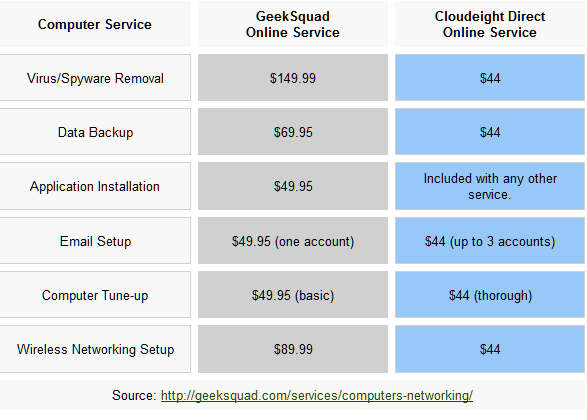
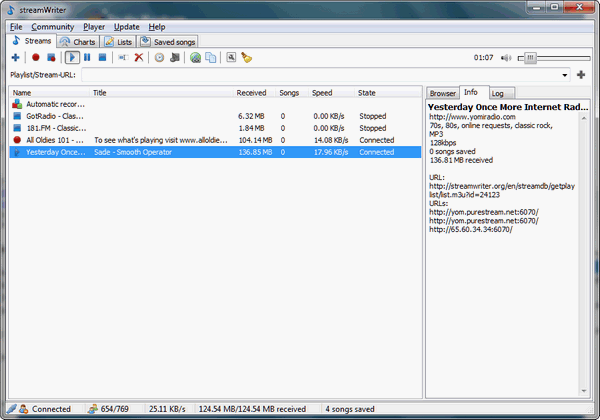
| Dear Friends, Welcome to Issue #529 of InfoAve Free Edition! Thank you very much for subscribing to our free InfoAve Newsletter. If you need to change your subscription or you wish to unsubscribe from our newsletter and break our hearts, click "Manage my subscription" at the very bottom of this newsletter. Thank you for very much for your support. Cloudeight Direct Computer Care We can fix your computer! Compare our Prices and Experience! *Our computer tune up is a complete tune up - unlike the 10-minute tune-up Geek Squad offers for $49.99. Wish we could feel good about making $49.99 in ten minutes :-). We offer many other computer services too! If you have a problem with your computer - we can fix it! . Our new Two-Session Key is on sale today! You can't beat our service -- or our prices -- anywhere. A few of the many comments we received last week from our Cloudeight Computer Care Customers A comment from JoAnn I was so very happy & pleased to have T.C. fix my computer. He spent so much time & was so determined to be very thorough. It was not an easy task & we did have a couple of snags. But T.C. was always back w/me to continue his work. It all turned out great and he gave me the answers to all of my questions. Congratulations to Cloudeight on this new venture of Direct Computer Care, and it has already been a great help to me. Many, many thanks to T.C. & his knowledge. JoAnn Thanks so much, JoAnn. It was my pleasure to have had the opportunity to work with you and to help you with your computer. We hope that your testimonial will encourage others to give our Cloudeight Direct Computer Care service a try. Thanks again! TC & EB. A comment from Deanna Thanks for using Cloudeight Direct Computer Care. We're glad your experience as a positive one and that your computer is running well! It was a pleasure helping you with your computer. Thanks for your kind words and your support. TC & EB A comment from Judy Thanks so much Judy - we are both glad we were able to get things fixed up for you and we're glad you're pleased with Cloudeight Direct Computer Care! Thanks for taking time out to write such a nice email and for your support! TC & EB QUESTIONS AND ANSWERS Bob installed a game on his computer and has had nothing but problems since I installed a game about a week ago and now everything on my computer is a mess. It freezes and crashes and sometimes the colors on my monitor look strange. Sometimes when I click on a program to open it, it won't open. Everything was fine until I installed that game. I have tried uninstalling the game but it never runs all the way through.. it won't uninstall.. I'm using Windows XP and I've installed SP3. I have never had a problem with this computer before. Help! Our Answer Some games are very, very graphics intensive. Some are very resource intensive. Some are both. It's always a good idea to read the system requirements for any game you are thinking about installing on your computer. There are some very sophisticated games out there that require high-end systems to run properly - when we say high-end systems - we mean Windows 7, quad-core processor, 8GB of RAM, 2GB graphics card, stuff like that :-). We don't know if this has anything to do with your problem, but installing games on your computer that require more "umpf" than your computer has, can lead to a dizzying array of computer problems - similar to the kinds of problems you're having. But one thing is puzzling - if the game is not running you shouldn't be having these problems -- unless (and this is quite possible) the game is running at start up. Luckily, Windows XP, Vista, and Windows 7 users always have an ace in the hole. And the funny thing is, that most people don't think of it first. If we did, we'd solve a lot of problems with a minimum amount of worry and frustration. And it's something all Windows XP and newer versions of Windows have - and it's always right at their finger tips. It's called "System Restore". 1. If something goes drastically wrong with your computer, think System Restore FIRST, before you do anything else. Use System Restore first, as soon as you notice the problem with your PC. Do not wait any longer than you have to. The sooner you try System Restore after a major problem surfaces the more likely it is that you'll be able to return your computer to normal using System Restore. 2. If at first you don't succeed, try, try again. Don't give up on System Restore if it fails the first time. Keep going further back in time until you can't go back any further. However far in time you go back, if you are successful you will have saved yourself a lot of time and a lot of headaches. System Restore, while a great option, was the last option we considered when we had a major computer problem recently. Finally, System Restore came to our fuzzy brains and we tried it. Our first two attempts to use system restore failed. At the end of the restore session we were presented with a "Windows cannot restore your computer" message. Yikes, is that like the computer kiss of death or what? Perseverance, my friends, sometimes pays off. While the first two attempts to restore the PC using System Restore failed, the third attempt succeeded. With each attempt we went further back in time. Apparently the two most recent System Restore Points were corrupted or otherwise unusable. We went back to a System Restore Point that had been made six days ago, and it was the lucky charm. 3. You'll see many tips on the Web about removing old Restore Points. This is fine if you're short on hard drive space. But, if you have a large hard drive and lots of space, you'd be wise to leave a few of the older System Restore points on your computer. Think of them as an extra cushion of safety in case something goes drastically wrong with your computer. 4. If you are successful using System Restore, be sure to create a new Restore Point immediately after you've booted up and you're sure all is working well again. The nice thing about System Restore is that no matter how far you go back in time, you don't lose any of your recent documents or email, images, mp3 files, etc. The only thing you lose with System Restore is any programs you've installed or any changes you've made to your system or registry since the Restore Point you used was created. It's a good thing too. Sometimes changes you made to your registry or programs you've installed, might just be cause of the problem in the first place, right? We hope this answer helps you, Janice. We think this answer would be a good one for all of our readers to commit to memory. Someday, sometime, somewhere, a major problem is going to crop up with your PC, and when it does, you'll be ready. You'll think "System Restore" first (hopefully). Note: System Restore does not replace the need to keep good drive-image backups. System Restore is not perfect and it's only as good as the Restore Points to which it has access. If you have a major problem with Windows itself, for example, you might not be able to access System Restore at all. But, in almost all cases where your computer was running fine and all of a sudden it is not, especially if you think it's because of program you've installed, System Restore should be your first thought when things go south in a hurry. Carole wants to know what we think of this Start Page Have you ever heard of something called Start Page (see https://www.startpage.com/eng/protect-privacy.html ). Someone had posted something about this on Facebook, so curious what you "guys" think about it. I am not interested myself, but would like to let others know if it is good or not. Thanks Carole Our Answer Q: What are "cookies" and does Startpage use any? A cookie is a small piece of data that is sent and saved to your computers' hard drive when visiting a site. Startpage uses only one cookie called "preferences". This cookie is to remember the search preferences you saved for your next visit. It expires after not visiting Startpage for 90 days and is anonymous. That may ease the minds of those who have no clue how the Internet works, but those who do will tell you that there is no way for Startpage to know who you are without dropping a cookie on your computer and recognizing you when you return to that page without an IP address. They're talking out of both sides of their mouth. It's bad enough that there is so much misinformation about "cookies" out there in the first place. It's even worse when a site plays on the fears of those who really don't understand what a cookie is and what it's for. What it can be for is exactly what Startpage uses it for - to identify you (your computer) and remember your preferences. Though they bash other sites or "storing" IP addresses, Startpage stores IP addresses too - but they claim they don't. There is no way that Startpage could recognize your computer without identifying it on the network by its IP address. We had to laugh out loud when we read this on their Privacy page: "Your privacy is under attack! Of course Startpage has their hands on your IP address or otherwise they couldn't save your preferences. Startpage is not doing any one a favor by publishing all this misinformation in order to boost their own traffic. If you're looking for a really good and private search engine because you're paranoid about Google (we're not), don't use Startpage if only because their scare tactics are disgusting. Use http://duckduckgo.com/ . They protect your privacy without resorting to pandering to the paranoid. You can read more about DuckDuckGo here. Finally we found it quite bizarre that someone who is obviously concerned about privacy would post this on Facebook of all places. Oh the irony. InfoAve Premium contains over three times as much content as our free edition - help yourself and help us too... Upgrade to InfoAve Premium right now - LIFETIME SUBSCRIPTIONS are now ON SALE! Special Offers On Computer Related Products SuperAntiSpyware Professional with a lifetime license - $24.95 - best price anywhere! Registry Commander - Take command of the Windows registry and save $10.00 off the retail price! HubbaDogs! We have 'em. Cute dog-shape 4-port USB hubs. Get yours while we still have them! COMPUTER TIPS AND TRICKS Setup Your Router to Send You Logs I have a Netgear router - but most other routers offer the same features. Today we're going to show you how to setup your wireless router to send you an email once each day showing your router logs. Your router will log any unusual activity so the less information your router log contains the better off you are. However don't get too worried if you see "DoS attack ACK" once in a while. Sometimes legitimate connections are logged as DoS attacks. If your router log shows anything unusual it will display the IP address of the suspected attack. Most times it will just be your ISP or Yahoo or another legitimate Web site. You can copy the IP address and go to http://www.ip-adress.com/ip_tracer/ and paste in the IP address to find out who it is. You can access your router's control panel through your browser. You have to find your router's default gateway. Here's how you do that: Press the Windows key plus the "R" key and type CMD in the command line and press Enter. Next type IPCONFIG at the cursor. You'll see a lot of information appear - but all you're interested is your Wireless Default Gateway: To access your router's control panel use the address of your default gateway preceded by http:// . So if your router's gateway is 198.162.1.1 you'd open your browser and type http://198.162.1.1 in its address bar and press "Go" or press Enter. You'll be asked for a user name and password - if you haven't changed it will the router's default which you can find in the documentation included with your router. If you don't have the documentation don't worry. Visit your router's manufacturer's Web site - you can find it there. Once you're logged into your router's control panel it would be an excellent idea to change the username and password to something else. It's not good to leave the default password at default. Just don't forget the password you choose. LastPass will remember this password for you - and so will Roboform. On the left side you'll see a list of options (see fig. 1 above). You'll see an option called "Logs". If you click that you'll see your router's log files. You should have an option called "Send log". Click that and fill in your email account information (user name/password and smtp server) and set the frequency you want your router logs sent to you. Once a day should be plenty - but you can have them send to you every hour if you really enjoy getting email. :-) While you're in your router's control panel do a little exploring too. It's a good way to learn. Just don't change any settings you are not sure of. Two Quick Tips You Can Use to Speed Up Your Computer This Weekend Windows 7 There are dozens of ways to optimize and speed up a computer. We've covered them many times in our newsletters: disabling start-up programs and services, removing junk and garbage files, removing unused programs, etc. But there are two ways to speed up your computer we've rarely mentioned. Here are two things you can do in less than ten minutes that will help you speed up your computer. Come on, admit it, your desktop is covered with icons isn't it? Did you know that having a desktop full of icons can slow down your computer - especially when it comes to starting Windows. And no, creating a folder and moving all those icons into a folder on your desktop won't fix anything - but it will make your desktop neater. Pin your most used programs to your taskbar or start menu. And remove the rest of those icons from your desktop. Remember - deleting the icons from your desktop does not remove the program or alter it in any way. Once your desktop is clear and you've pinned your most often used programs to your taskbar or start menu, use the start menu search to launch other programs you don't use as often. The start menu search is the fastest way to launch a program. If you need to launch Notepad for example - type Notepad in your start menu search. A second or two later it's icon appears at the top of the menu. Just click it and Notepad will open. To pin a program to the taskbar, right click the program's icon and choose "Pin to taskbar". Do the same to pin a program to the start menu, just choose, "Pin to Start Menu". 2. Go for performance instead of eye candy Do you need fancy Aeroglass toolbars and program Windows? Do you need sliding menus and menu animations? Do you really need all that eye candy? If you want the fastest system performance you can get with your current configuration - and you don't mind your Windows 7 looking more like Windows 98 - you can get an extra boost by turning off all (most) of Windows 7's visual effects -- and use all that extra memory you'll save to run applications and not fancy toolbars or menu animations. Here's how to do it: Click your start button and then type "System" (without the quotes) in your start menu search. When System appears at the top, click it. When the System dialog opens click "Advanced system settings" (in the left pane). Click the Advanced tab in the System properties dialog, then click "Setting" under "Performance" Most likely your computer's performance settings are the same as those in the screen shot below - "Let Windows choose what's best for my computer." I've seen hundreds of computers (thanks to your fantastic response to Cloudeight Direct Computer Care) and no matter how much RAM or how little RAM, no matter what kind of processor or hardware a computer has, Windows always opts to make your computer look pretty - sometimes at the expense of performance. But if you're looking to increase your computer's performance and you're willing to give up the eye candy, check the box next to "Adjust for best performance" and then click "Apply" and "OK". You'll be visually shocked when all the eye candy disappears, but you may be please by the extra pep your system has when you free up those resources that were used to make things pretty and use them to run programs instead. If you have a powerful system -- say a quad-core processor, 4GB or more of RAM and a substantial graphic card, you probably won't notice much difference. But if you're running on 4GB or less of RAM and don't have a quad-core processor or a fancy graphics card, you'll certainly notice the extra pep in your computer's step. Why Does Almost Everything You Download Have Hidden Software in It? THIS WEEK'S FREEWARE PICK streamWriter Internet Radio and MP3 Recorder Works with Windows XP, Vista, Seven, Windows 8 (32bit/64bit) Approx 2MB It's been another hectic week here at in the dank dark dungeon in the basement of EB's mansion. There isn't much to smile about. Eating stale bread and working 22 hours a day does not give me much time for relaxing or even sleeping. But such is my fate. If you promise not to tell EB, I'll let you in on a little secret: I've found a great freeware program that lets me to listen to Internet radio stations - and record all the songs I want. Plus I can save them as MP3s. If she's only buy me some new earbuds for the iPod I don't have. Anyway if she found out I was listening to all my favorite songs while I am working -- why, why, why, who knows what she might do? Who knows what evil that woman is capable of? Only the Shadow knows. So please don't tell her about this program OK? She'll find out about it eventually and make me uninstall it from my computer -- but she won't know I've recorded 1721 songs and saved them on a flash drive -- so when she discovers that I'm being entertained by Hall & Oates and makes me remove streamWriter from my computer - I'll still have almost 2000 songs to listen to! Assuming she doesn't find that flash drive of course! Fortunately for you, the program's author is quite thrifty with words. So before I get caught listening to Internet radio and recording my favorite songs with streamWriter --- I'm going to bring the author in to say a little about streamWriter -- while he's telling you about his program, I'm going to find a place to hide this flash drive: "streamWriter is a free application for windows that records music broadcasted by internet-radiostations. It's a great program - no adware, spyware or bundled software. And I've really enjoyed it while I have had it. Unfortunately here comes EB and she's got her broom. No she's not flying on it right now - she's getting ready to beat me with it. I have to hide. But before I do, I want to tell you that streamWriter makes it so simple to find your favorite genre of music. And it's very easy to record any or all the songs you hear.
If you don't speak Dutch, listen up! When you install the program it gives you a choice of Dutch or English. If you speak English more than Dutch I suggest you select English :-) Ouch! That hurts EB! "In the jungle the mighty jungle...the lion sleeps tonight!" Do you have a freeware program you love? Tell us about it! This week's essay
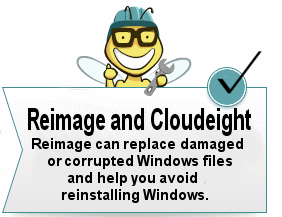
Dying in the Rain It's a beautiful and warm spring day, although by the calendar, it is still winter. The trees remain devoid of leaves, and most of the spring flowers are but nascent green shoots. The calendar tells me it's still winter, but my heart and my spirit tell me it's spring and so does the sunshine that seems more at ease today, less slanted, less strained and brighter and more beautiful than it was just a few days ago. Spring in my part of the country rarely lives up my hopes for it, and perhaps this spring, when it does officially arrive, won't live up to them either. But I'll not waste my time on this lovely spring day worrying about what the official spring may bring. Remarkable days like these remind me that too many people worry too much about what tomorrow will bring and in so doing they ruin today. No one knows or can know what tomorrow will bring. We cannot even foresee events that await us in our future – not even a few short minutes from now. That's a good thing and there is a really good reason the future hides its face from us. Our Information Avenue Web Site The best of our tips and tricks, freeware picks and more are now online! You can leave your comments, make suggestions, and give us your feedback on our new interactive Information Avenue Web site. As of today there are 288 freeware picks, 773 computer tips and tricks, and a lot more information on our new Information Avenue web site. And we add more tips, tricks, freeware picks, featured articles and more - every day! You'll find our new site-search feature helps you find the information you want - instantly! Give it a try. We think you'll find our new InfoAve site a great place to go if you're looking for past freeware picks, tips and tricks or other computer information. Just type what you're looking for in the site search and if we've got it, you'll find it. It's easy and it's very fast. Please come visit our Information Avenue Web site. We're sure you'll find something you can use every time you visit. We update that page every day. And you can leave your comments after any article. Until now, if you're computer had corrupted or damaged Windows system files, there was only one way to repair the damage: reinstall Windows. But that means if you don't have your files backed up (and you should, you know) - you're going to lose everything, not to mention all the personalization and settings changes you've made. It's a hassle to reinstall Windows; it means hours or days - or even weeks - trying to get your computer back to the way you want it. Try Reimage right now! But now you don't have to resort to reinstalling Windows - you can choose to use Reimage. Reimage keeps an huge inventory of Windows system files to replace or repair any missing or corrupted files on your Windows XP, Windows Vista or Windows 7 computer. And with a money-back guarantee, you've got nothing to lose but the aggravation of installing Windows. If your computer is at the point where you're seriously consider reinstalling Windows - stop. Try Reimage first. We think you'll be glad your did! Get more information and or try Reimage right now. Reimage can replace and repair critical Windows system files and save you from the hassle of reinstalling Windows. Thanks again for subscribing to Information Avenue Free Edition. Have a nice weekend. Best wishes, Eightball & Thundercloud Questions? Comments? Suggestions? We're always glad to hear from you!  Cloudeight Direct Computer Care: Get more information about our Cloudeight Direct Computer Care service here. If you need to change your subscription address or wish to unsubscribe from this newsletter :( click "Manage my subscription" at the very bottom of this newsletter. Share this newsletter with your friends! Forward this newsletter or send a link to this newsletter online at http://thundercloud.net/infoave/archives2012/week-529.htm . We'd appreciate it and maybe your friends would too! . PLEASE CLICK HERE TO READ THIS IMPORTANT DISCLAIMER This newsletter is published weekly by: |



| All content is copyright ©2012 by Cloudeight Internet, LLC. |

| You are currently subscribed to informationavenue as: ovejatri.blog.daily@blogger.com Add informationavenue@pr1.netatlantic.com to your email address book to ensure delivery Forward to a Friend | Manage Subscription | Subscribe | Unsubscribe |  |
0 comments:
Post a Comment