Click " Skip Ads " to view this page

Saferich.biz
Watch TVKim.com Search Komando.com 1,000 + Free Downloads Shop Kim's Store More Free Cool Sites
Kim Komando
Kim KomandoSign-up for Kim's Club Now

April 20, 2012

Make ten dollars

Everybody has unique skills. You may be great at building websites, writing jingles or making funny pictures.

Did you know there are people around the world who could be interested in your talents? They may even be willing to pay you. Ten dollars, that is.

TenDollarz.com is a website where you can peddle your skills for ten bucks per job or hire someone to do a useful task. Most of the services that people offer at TenDollarz.com are related to Internet marketing, social media and search engine optimization.

On the other hand, one user will help you find your life purpose and another will teach you basic phrases in Dutch. All for the low price of ten smackeroos!

CLICK HERE to visit today's cool site now >>

Screen shot of: http://www.komando.com/coolsites/index.aspx?id=12389

The text: Find it fast links. Daily Freebies @ komando.com with a curved arrow pointing to komando.com
Bullet in the form of a curved arrowApp of the Day

Does your Bible app include hundreds of versions and languages? Can it support bookmarks, notes and reading plans? This one has it all!
CLICK HERE TO FIND OUT MORE >>

Bullet in the form of a curved arrowNews of the Day

Keep up to date on all things digital with the Daily News at Komando.com. You'll find easy, fast video news releases, too!
CLICK HERE TO FIND OUT MORE >>

Bullet in the form of a curved arrowFREE Download of the Day

Having your own stationery turns any old paper into an expression of yourself. Download one of these customizable stationeries to take your documents to the next level.
CLICK HERE TO FIND OUT MORE >>

Bullet in the form of a curved arrowTip of the Day

Fifth-generation Wi-Fi devices will start hitting the market this year. What makes this new Wi-Fi special, and should you wait to buy? I'll tell you what you need to know.
CLICK HERE TO FIND OUT MORE >>

Bullet in the form of a curved arrowDigital Minute of the Day

(Kim's Club members only--join now!)
Wikipedia is a popular online encyclopedia that anyone can edit. Supporters have always said that this model ensures more accuracy. Now a new study reveals the surprising truth. Tune it to find out what was learned.
CLICK HERE TO FIND OUT MORE >>

Bullet in the form of a curved arrowVideo of the Day

It's another average day in an average town square. Then someone pushes a harmless-looking red button. You won't believe what happens next!
CLICK HERE TO FIND OUT MORE >>

advertisement

No outlet? No problem! Chart most devices on the go!

advertisement

Relax & Restore with Carbonite!


advertisement

Enjoy your music more with these great products - and save 20 percent!

iPhone 4S details and review

Play

IPHONE 4S DETAILS AND REVIEW

Is the iPhone 4S really spectacular? Watch this video now and get the straight scoop from America's leading tech expert, Kim Komando.

Underwater boxing match

Play

KIM'S VIDEO FAVORITES: UNDERWATER BOXING MATCH

Go on YouTube and you'll quickly find lots of people pulling crazy stunts. Sometimes it's for laughs and sometimes for fame. Well, that didn't start with YouTube.

reVIVE II - Dual USB Home Charger for iPad

Buy

REVIVE II - DUAL USB HOME CHARGER FOR IPAD

reVIVE II dual USB Charger for iPhone and other USB devices with extra power for an iPad

Sponsored Links

Get 2 FREE months of Carbonite

I trust my photos, files, and memories to Carbonite Online Backup. You should too. Hard drives die. You need a backup. Sign up now for your free 15-day trial. No credit card required. Get 2 months free if you decide to buy.

carbonite.com/kim

Half off VIPRE Antivirus!

VIPRE Antivirus is ranked No. 1 for Windows 7. Detects and blocks all types of malware, including viruses, spyware, Trojans, adware, worms and rootkits. VIPRE is easy to use and won't slow down your PC. Free tech support!
Go to

TRYVIPRE.COM/KIM

One call can lower your mortgage today

Keep money in your pocket. Take advantage of today's low interest rates. Call Quicken Loans at 1-800-QUICKEN. Or use their online tools. Equal housing lender.

quickenloans.com/home-loans

Access Your Mac or PC from Anywhere

The world's best remote access software now gives you access to all your files and applications on your computer from your iPad! Try GoToMyPC FREE for 45 days!

gotomypc.com/s/kim

Try me for a month!

Watch my show live or on-demand! Listen on your schedule. Have your questions answered on my message board and more. All for less than $5 per month. I know you'll love it.

komando.com/kimsclub

Not a Member of Kim's Club yet?
Join Kim's Club today!

Follow me on the web
FacebookTwitterYoutube

Advertise | Advertiser Comments | Sign Up for our Email Alerts | Privacy Policy | Terms and Conditions

To unsubscribe or modify your subscription, use our online form.

Copyright © 2012 Weststar Digital Audio, Inc. All Rights Reserved.

Please add kimcoolsitereply@lyris.komando.com to your address book ensure Kim's emails reach your inbox.

To view this email as a Web page, go here.

Jkwebtalks


Bing Bar Updated With Facebook Chat

Posted: 18 Apr 2012 08:13 PM PDT

Microsoft has updated Bing Bar for Internet Explorer with Facebook chat and other entertainment apps. The new Bing Bar (v. 7.1) allows you to chat with your Facebook friends, get the info you need, and find the entertainment you want, all without leaving the page you're surfing. You need to login with Facebook and provide access to the chat to start using it. Below are some of the notable features included in the new BingBar Slacker Radio – Lets you listen to music, news, and other...

Read rest of this article at JkWebtalks.com

OS X Daily: “Restore Accidentally Deleted Apps on iPhone & iPad” plus 2 more

Link to OS X Daily

Restore Accidentally Deleted Apps on iPhone & iPad

Posted: 19 Apr 2012 01:19 PM PDT

Redownload deleted apps

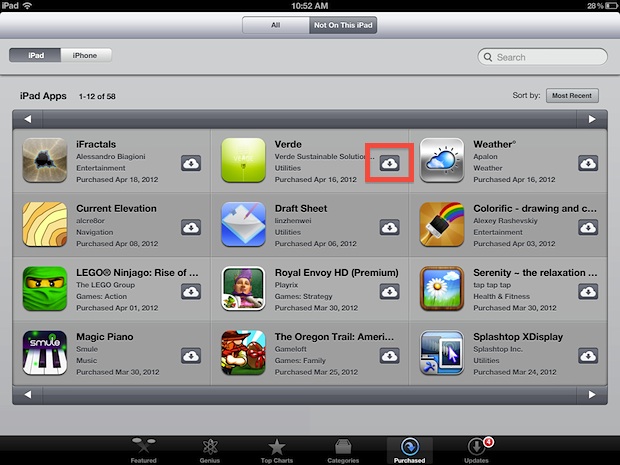
Don’t freak out if you accidentally deleted an app on an iPhone or iPad, they can be easily redownloaded and restored at anytime:

  1. Open “App Store” and tap on “Purchased” at the bottom of the screen
  2. Tap on the “Not On This iPad” tab at top (or “Not On This iPhone”)
  3. Find the accidentally deleted app in the list and tap the cloud arrow icon to redownload the app, enter Apple ID password when requested

The app will redownload and reinstall itself. You will not be charged for redownloading apps that you already own as long as the Apple ID is the same.

iOS apps aren’t the only thing that can be recovered and redownloaded easily though, and this method will work with iTunes Store purchases and Mac App Store purchases as well.


How to Recover Hard Disk Space on a Mac with OmniDiskSweeper

Posted: 19 Apr 2012 12:05 PM PDT

OmniDiskSweeper for Mac OS X

Running out of disk space is no fun and Mac users with smaller drives need to be particularly aware of available disk space. The OS X Finder Search feature can be used to find large files but if you’re really serious about managing disk space and tracking down unnecessary large files and folders, you should use a free tool called OmniDiskSweeper.

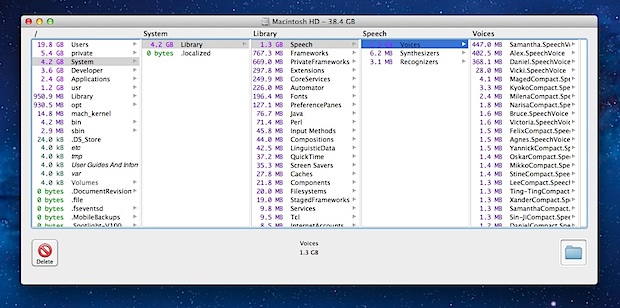
OmniDiskSweeper is an excellent application for Mac OS X that shows everything on a hard disk in descending order by size, each directory can then be drilled down into further to quickly locate the largest files, and the offending folders or files can be deleted directly from the app. Finding the large files and folders with OmniDiskSweeper is quick and painless:

  1. Download OmniDiskSweeper (free), copy it to your /Applications/ folder, and launch the app
  2. Click on your primary hard disk, typically labeled “Macintosh HD”
  3. Let OmniDiskSweeper sweep the drive to find all files by size, then click on the topmost directories to find items that can be deleted

Important: OmniDiskSweeper is intended for users who are knowledgable about their Mac file system. If you don’t absolutely know what a file or directory is and if it’s necessary or not, do not delete it! There is no going back, and if you accidentally delete important system files or folders you may find yourself having to recover from a backup or reinstalling OS X. You’ve been warned.

Exactly what can be removed is going to vary per user and per drive, but everyone will certainly find items that are no longer necessary to keep around. For example, sweeping my drive with OmniDiskSweeper I discovered and removed the following items:

  • The user ~/Library/Application Support/ directory contained 1GB of files for apps that are no longer used
  • Spotify Caches were taking up 1GB of disk space, removing that and deleting unnecessary user caches recovered 2GB of disk space immediately
  • Over 1GB of unused OS X Voices were removed
  • The Downloads folder has become enormous, deleting everything from there recovered a quick 4GB
  • 900MB of unused and long forgotten Applications were uninstalled freeing up space

Ultimately how much all this matters and how much disk space you need to reclaim is going to depend on the capacity of a Mac hard drive. I use a MacBook Air 11″ with only a 64GB SSD making each 1GB of unnecessary files or folders significant, and I was able to quickly recover about 12% of total disk capacity just by looking through OmniDiskSweeper and removing what I know isn’t needed.

Consider adding OmniDiskSweeper to part of a general Mac maintenance routine, even those with very large hard drives will find it to be an effective method of keeping a file system under control.


Transfer Pictures to iPad the Easy Way with iTunes

Posted: 19 Apr 2012 09:13 AM PDT

Transfer Photos to iPad

Transferring photos from a computer to the iPad is very easy with the help of iTunes. To get started, you’ll need either a Mac or PC with iTunes, a USB connector cable for the iPad, and a folder containing the pictures you want to transfer over to the iPad.

The process is exactly the same in both Mac OS X and Windows, which is why it’s the easiest universal method to transfer photos to an iPad from any computer.

  1. Create a folder containing images you want to transfer to the iPad
  2. Connect the iPad to the computer, launch iTunes, and select the iPad from the devices list
  3. Click on the “Photos” tab
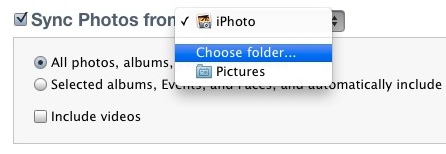
  4. Check the box next to “Sync Photos from” and select “Choose folder…”
  5. Transfer Photos to an iPad

  6. Locate and select the folder you created earlier containing the pictures you wish to transfer over, click on “Choose”
  7. Click on “Apply” to begin syncing the photos from the computer to iPad

The images will sync over and create a new album within the iPad Photos app that contains all the pictures. If the selected folder contains subfolders with pictures, those will transfer as well, but you can uncheck subfolders if you want them excluded.

If you need to do the reverse and get pictures off of an iPad or iPhone, transferring photos from iOS to a computer is also simple and can be done entirely outside of iTunes.

Finally, setting up iCloud gives access to the Photo Stream feature, which will automate the entire process of syncing pictures between a Mac and an iPad, iPhone, or iPod touch. If you haven’t signed up for the free iCloud service yet, you should do so.


top