 The most straight forward way to burn an ISO from a Mac is using Disk Utility, but you can also burn ISO’s and disk images directly from the command line with the help of a tool called ‘dd’.
dd can be advantageous for several reasons. For one, the command line aspect makes it easy to use through a remote SSH connection, but perhaps more useful is dd’s low-level functionality which is generally faster than alternatives and could circumvent some error messages.
Because this is a command line tool it should be considered mostly for advanced users, and although this is written with Mac OS X in mind it should work with Linux as well, with the exception of the diskutil command. As usual, be certain that all syntax is entered properly to avoid potential problems, and if in doubt, just stick with a simpler method from the GUI.
Burn an ISO from the Command Line with dd
The first thing you’ll need to do is find the disk or drive from the command line:
diskutil list
Locate the name of the destination drive in the mounted drives list and make note of its “IDENTIFIER” code, this should be something like “disk1s1″ but it will likely be unique to your machine.

Using the identifier you just found, unmount the disk but do not disconnect it from the Mac:
sudo unmount /dev/disk1s1
Enter the administrator password when requested to complete unmount.
Burning a disk image using the command line tool ‘dd’ uses the following syntax:
dd if=/path/to/image.iso of=/dev/disk1s1
For example, to burn an image located on the desktop of user “Will” called “OSXMountainGorilla.iso” the command would be:
dd if=/Users/Will/Desktop/OSXMountainGorilla.iso of=/dev/disk1s1/
You will notice that dd does not give you updates or a status bar, but when the command is finished running you will be returned to the standard terminal prompt.
Any disk image should work as dd is not limited to ISO. You could use this tool to make bootable Mac OS installation drives as well, including for for OS X Mountain Lion and OS X Lion.



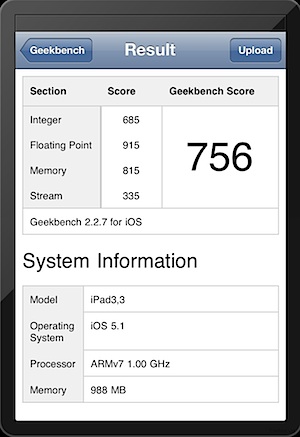 The iPad 3 has been benchmarked to reveal