


OS X Daily: “Clear iMessage Chat History in Mac OS X” plus 1 more |  |

| Clear iMessage Chat History in Mac OS X Posted: 05 Mar 2012 09:48 AM PST
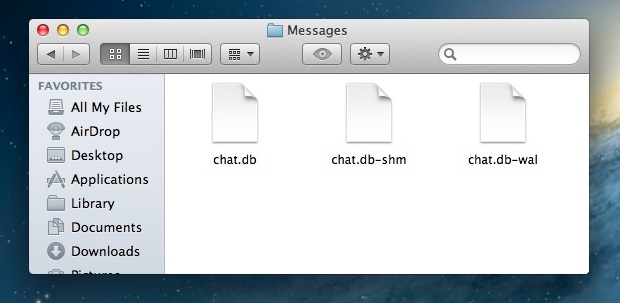
iMessage keeps track of chat history, providing you with a lengthy record of conversations in a scrollable chat log. Unlike iOS, there isn’t an in-app method to delete the chat history in OS X (yet), instead you will have to turn to the Finder or command line:
You can also do this through the command line. Quit out of iMessage and open Terminal, at the prompt type the following:
Relaunch iMessages and to find an empty chat history. Remember that iMessages for Mac is currently in beta, there will probably be an easier way to delete chat history in the final version when it ships this summer with OS X Mountain Lion. Thanks for the tip Kevin!
|
| Posted: 04 Mar 2012 11:02 AM PST
Macs are notoriously trouble-free and easy to maintain, but that doesn’t mean you should ignore system maintenance entirely. Here are four simple Mac maintenance tips that will help you keep your Mac running at its best.
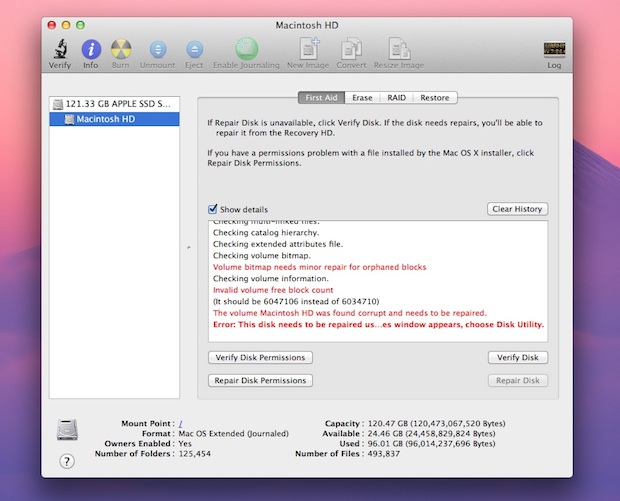
1) Run Disk UtilityRunning Disk Utility every month or two is a good idea for two reasons: repairing permissions, and more importantly, verifying and repairing the hard drive. Disk Utility is included on all Macs and found in the /Applications/Utilities folder, the two necessary procedures will be under the “First Aid” tab and can be run one after another. 1a) Repairing Disk Permissions 1b) Repair Disk
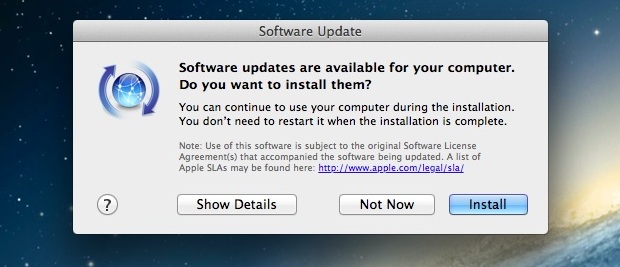
2) Keep your Mac Software UpdatedKeeping your Mac software up to date is vital. Periodically run Software Update from the Apple menu, and periodically check the Mac App Store for updates of your apps there too. Updates can come in the form of general bug fixes, feature enhancements, and security fixes, and it’s so easy to do there is no excuse not to. Software Update will check for updates once a week by default, but the Mac App Store has to be manually checked for updates in OS X Lion. With OS X Mountain Lion, Software Update moves to the Mac App Store so this whole process will be automated for OS X 10.8 users.
3) Clean Off the DesktopBelieve it or not, having a lot of files on the desktop will actually slow down a Mac. The slowdown is less noticeable on the newest and beefiest Macs, but nonetheless it still happens. This is because each file and its icon preview take up RAM and resources, and the less RAM you have the more you’ll notice the sluggishness resulting from a cluttered desktop. The best solution is to get in the habit of filing things off the desktop and into appropriate folders, but if you can’t be bothered to do that than just grab all files and move them into a single directory and deal with it later. If you can’t remember to do it yourself, there are apps that will automatically clean it for you by moving files and folders to a designated place at a regular interval.
4) Regularly Back Up the MacPerforming regular backups is essential Mac maintenance. Not only will you be able to quickly recover from potential disasters, but keeping your files backed up is just good practice. By far the simplest back up solution for Macs is Time Machine. You’ll need an external hard drive, but once you set up Time Machine the rest is very simple and automatic backups occur without any effort. If you haven’t set up Time Machine yet you really need to do so. Get a large and cheap external hard drive You should also get in the habit of backing up manually right before performing system software updates, it’s rare but things can go wrong, and it’s bes to be prepared.
|


 and then configure Time Machine through System Preferences, it’s extremely easy and in the event you ever need to recover from a backup, you’ll be very thankful you have one.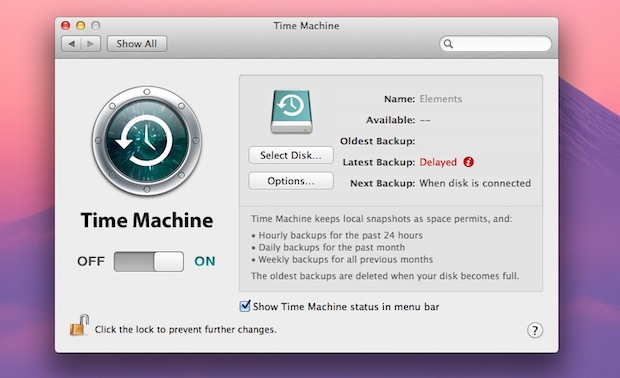
| You are subscribed to email updates from OS X Daily To stop receiving these emails, you may unsubscribe now. | Email delivery powered by Google |
| Google Inc., 20 West Kinzie, Chicago IL USA 60610 | |
0 comments:
Post a Comment