


OS X Daily: “8 Great Ways to Use Air Display & iPad” plus 2 more |  |

- 8 Great Ways to Use Air Display & iPad
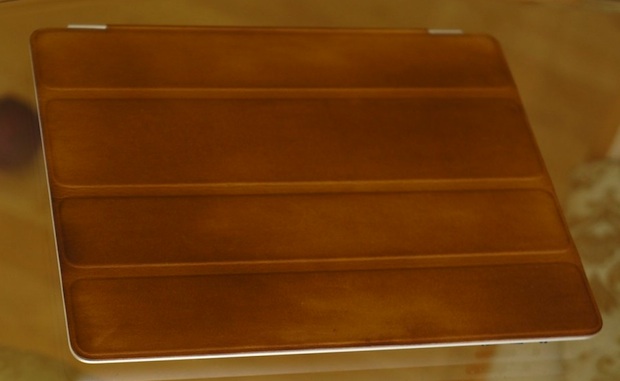
- Spilling Coffee on the iPad Smart Cover Looks Surprisingly Attractive
- Is It Better to Shut Down, Sleep, or Leave a Mac Turned On When Not Being Used?
| 8 Great Ways to Use Air Display & iPad Posted: 11 Apr 2012 09:36 AM PDT
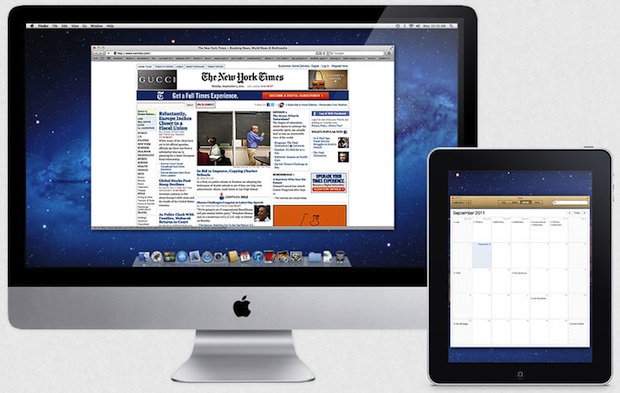
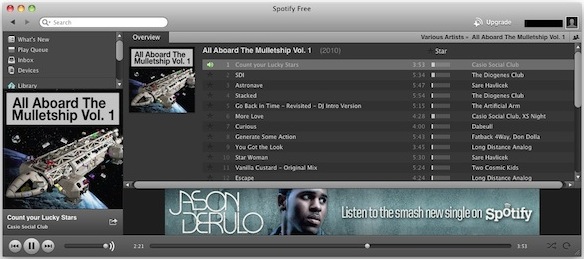
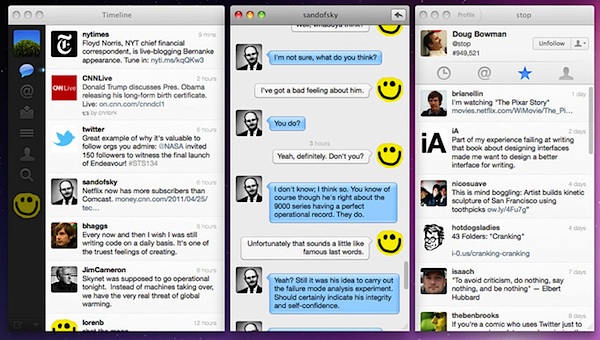
If you saw our Air Display review you’ll know it’s a pretty awesome app that lets you turn an iPad into an external display for a Mac or PC ($10 on the App Store). If you bought it and haven’t figured out what to do with it yet, here are eight of our favorite ways to use Air Display as an auxiliary screen.
You’ll notice anything graphics intensive isn’t mentioned in this list because Air Display has to transmit all data through wi-fi. That connection doesn’t provide for precision tracking or smooth playback of video, so we chose things that work perfectly given the apps limitations. If you have any other ideas or uses for Air Display and the iPad, let us know in the comments.
|
| Spilling Coffee on the iPad Smart Cover Looks Surprisingly Attractive Posted: 11 Apr 2012 09:12 AM PDT
Spilling coffee on something is generally considered a bad thing, but not if you have a brown leather iPad Smart Cover. TwoLivesLeft accidentally got some coffee on their iPad case, and then had the hilarious epiphany “I had a wonderful, horrible idea: I'd stain the cover with coffee“. The result? A surprisingly attractive appearance that looks like beautifully refined leather, akin to something dug out of an old dusty library. You can see how to make your very own coffee stained Smart Cover at TwoLivesLeft, it involves painting the smart cover with coffee and then rubbing crushed beans all over it. Speaking from my own experience of spilling coffee on porous things, the Smart Cover will undoubtedly smell like liquid crack for a very long time. Whether that’s a bad thing is your call, but I won’t be trying this myself. if you’re brave enough to give it a go we’d love to hear about it.
Fascinating discovery by CultOfMac, best of luck to anyone who tries this.
|
| Is It Better to Shut Down, Sleep, or Leave a Mac Turned On When Not Being Used? Posted: 10 Apr 2012 11:49 AM PDT
When it’s not in use, do you shut down your Mac, put it to sleep, or just keep it turned on? Is one choice better than the others? Why and why not? These are great questions, so let us review the choices and why you may want to choose one over the other. Sleeping a MacThis is my preferred choice because it provides for the easiest and fastest way to resume work while still maintaining hardware. It’s practically instantaneous to sleep a Mac and when you wake it up all of your open apps, documents, window arrangements, and web pages, are exactly where you left off with practically no delay. For the average Mac user who wants to quickly get back to what they were doing, sleeping is perfect.
If you use the Mac every day, simply putting it to sleep when it’s not in use or overnight is probably the best choice. Just be sure to remember to reboot every once in a while to allow system software updates to install as part of a general maintenance routine, though waiting for an OS X Update or Security Update is generally a sufficient time between reboots. You can also gather some gigantic uptimes with this approach which is pretty much a useless statistic other than the nerdy bragging rights, (I’m currently at 35 days, weeeee!) but hey it’s fun to check anyway. Shutting the Mac DownI basically never shut down a Mac unless it’s going into a longer term state of inactivity or storage. Shutting down a Mac is slower since all open applications and documents have to quit, and then when you turn the machine back on everything has to re-open again to get back to where you were prior to shutdown. OS X Lion made resuming past application states much simpler with the automatic window restore feature (which some dislike and choose to disable), but I still find it too slow to be usable for my instant-on demands.
For the power conscious or for those trying to squeeze the absolute longest lifespan out of hardware and hard disks, shutting down when not in use is the best choice. This is also what you’ll want to do if you’re going to put a Mac in longterm storage, won’t be using it for a longer than a few days, or if you’re going to be traveling with a Mac that isn’t in use during the travel period. Keeping a Mac Always Turned OnLeaving a Mac constantly turned on is another viable option, though I think it’s best reserved for Macs that function as servers. This approach also carries the most polar advantages and disadvantages. On the plus side, you don’t have to bother resuming anything since it’s already on, you can schedule all maintenance and backup tasks to occur in the wee hours of system inactivity, and it allows for something like a constantly available SSH server or media center to be running on the machine. The downsides are basically the constant power consumption and the constantly active hardware, which can limit overall lifespans of the computer components.
If you’re running a server or media center, leaving a Mac turned on constantly is a no brainer. For the casual Mac user, it’s probably best to put a Mac to sleep when it’s not in use though, it gives hard drives and fans a rest, and will generally lead to a longer lifespan of the computer. What do you do and why? Let us know your thoughts and habits in the comments.
|


| You are subscribed to email updates from OS X Daily To stop receiving these emails, you may unsubscribe now. | Email delivery powered by Google |
| Google Inc., 20 West Kinzie, Chicago IL USA 60610 | |
0 comments:
Post a Comment