


OS X Daily: “MacUpdate Bundle: 11 Mac Apps for $49.99, with VMWare Fusion, PDFPen, ForkLift, etc” plus 4 more |  |

- MacUpdate Bundle: 11 Mac Apps for $49.99, with VMWare Fusion, PDFPen, ForkLift, etc
- Where to Buy a New iPad 3 on Launch Day
- Set iTunes to Download 1080p Video Content as Default
- Send Video VoiceMail Messages from the iPhone, iPad, and iPod touch
- 5 MKV Video Players for Mac OS X
| MacUpdate Bundle: 11 Mac Apps for $49.99, with VMWare Fusion, PDFPen, ForkLift, etc Posted: 14 Mar 2012 11:31 AM PDT
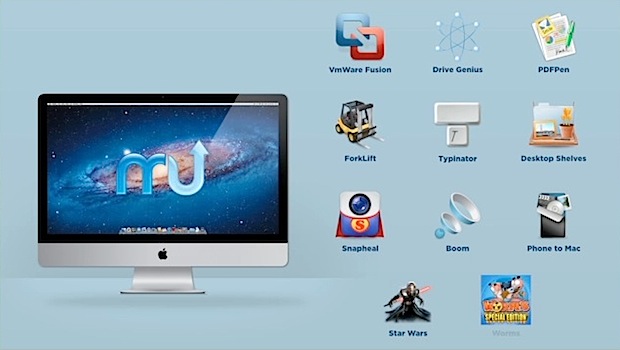
MacUpdate has announced their Spring bundle for 2012, offering a great selection of 11 Mac apps for $49.99. The price for the bundle if each app was purchased separately is $378, so buying the pack is a great way to save some money on a solid collection of Mac software. Apps included are:
Head on over to MacUpdate to read more about each app, check out some demos, or to buy the bundle. Video showing off the apps is below.
|
| Where to Buy a New iPad 3 on Launch Day Posted: 14 Mar 2012 10:07 AM PDT
The new iPad will be released this Friday at 8AM. As usual with a new iPad or iPhone release, you can expect to see some pretty major lines and it’ll be tough to get your hands on one if you didn’t pre-order. Knowing who is carrying the device and where they are will increase your odds of grabbing an iPad early, though don’t be surprised if they all sell out quickly. iPad 3 Retailers
Traditionally, retailers get significantly fewer iPads than the Apple Stores do, and often in fewer model choices. If you aren’t picky about which iPad 3 you buy, any store that you can get to early should work. Just be aware you may only have 32GB White models, or 16GB Black 4G, or 64GB Wi-Fi, or some other slim variety of models to choose from. The widest variety of choices are almost always at Apple Stores this early in the buying cycle. Plan accordingly, and remember that other than the storage capacity and wi-fi/4G ability, the features and specs of each iPad 3 are the same. Alternate Places to Buy New iPad
Don’t Mind Waiting? Buy Online from Apple
|
| Set iTunes to Download 1080p Video Content as Default Posted: 14 Mar 2012 07:32 AM PDT
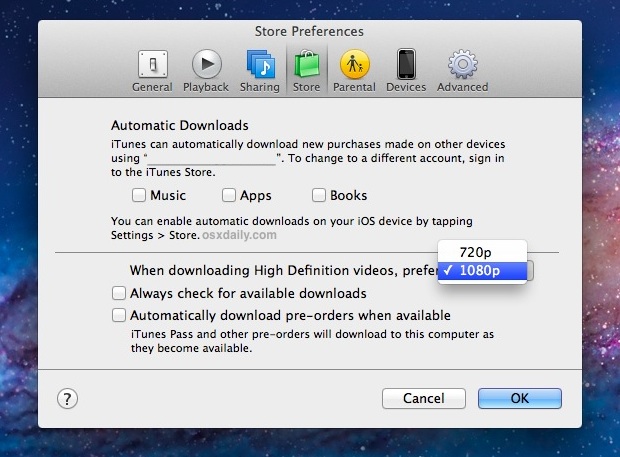
iTunes now lets you specify a preference for 1080p high definition video content from anything downloaded through the iTunes Store. The default video setting prefers 720p though, here is how to change that to true 1080p HD:
You will need iTunes 10.6 or later to find this option in preferences. Most people can’t tell the difference between a 720p and 1080p video when shown on a distant television, but with the new iPad’s Retina display, the 1080p capable Apple TV 3, and whatever other upcoming high definition displays come from Apple, you’ll almost certainly notice the improved clarity and resolution fo 1080p. Just be aware that 1080p content takes up much more disk space, so you may want to keep 720p as the default if you are concerned with available storage. This is the second media compression/quality choice that comes with the new version of iTunes, which also lets users set song bit rate from 128kbps to 256kbps on their iOS devices.
|
| Send Video VoiceMail Messages from the iPhone, iPad, and iPod touch Posted: 14 Mar 2012 04:48 AM PDT
If you’ve ever had to explain to someone that iPhone visual voicemail does not literally mean video voicemail, you know the potential disappointment that comes with it. What the user probably envisioned was the ability to record a quick video message and leave that as a video voicemail for the recipient to watch when they receive it. But it turns out that the iPhone can send video messages, they just aren’t going to be labeled as voicemail or sent through FaceTime, and in some ways this makes them even more flexible. Sending Video Messages from iOSHere’s how to record and send a video message from the iPhone, iPad, or iPod touch:
From the receiving users perspective, using “Message” will act closer to what a video voicemail may be like, with the recipient getting a notification alert informing them a video has arrived. These come in like a standard MMS, though there’s a small video icon in the lower corner to demonstrate that it’s a movie, and when tapped it plays the video. This is best with iMessage, so be sure iMessage is set up and configured for all users to get the best results. You can use email as well, though the video message will just be lost in their standard emails and it won’t arrive as a thumbnailed alert as the messages protocol does. Is this video voicemail? Not quite, but it’s pretty close. Hopefully a future version of FaceTime will allow for video answering machines and voicemail boxes, but until then, using iMessage gets the job done and should satisfy most users.
|
| 5 MKV Video Players for Mac OS X Posted: 13 Mar 2012 02:57 PM PDT
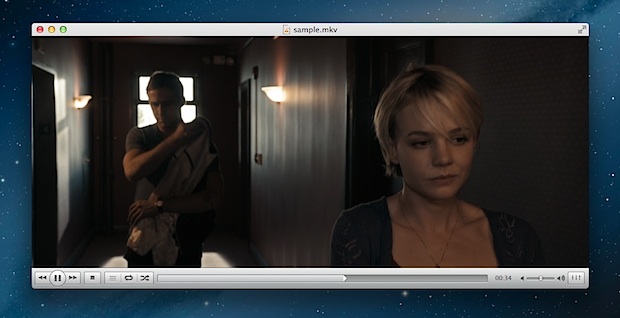
MKV files are usually high quality videos compressed within a Mastroska container format. Typically you’ll encounter these with Bluray rips or video exported from an HD stream, and you might have discovered they won’t open in a standard movie player. Not to worry though, MKV files can be played on a Mac easily, you just need to download an app or codec that supports playing the high quality video format. #1 – VLC 2The first recommendation is VLC, which will play just about any video or audio file thrown at it and MKV is no exception. VLC 2 recently came out with some pretty significant changes, and even if you don’t plan on using it to play .mkv movies, it’s a worthwhile app to have on any Mac. Some users report performance issues with playing MKV from VLC, but I’ve had no such problems. #2 – XBMCXBMC is another good app to play MKV video, it’s simple interface focuses on media use and it makes a great media console in general. To get the most out of XBMC, copy any MKV video files to the Movies directory in the users home folder and you’ll be able to quickly find them within XBMC. #3 – PlexPlex is very similar to XBMC and works as well. Although it is generally a great media center app, the most recent update took a strange turn and the interface is more confusing than it needs to be. Nonetheless, it still plays MKV files quite well, if you’re going to use it drag and drop the MKV video onto the Plex icon to load the movie, otherwise trying to navigate through Plex’s confusing new menus will likely leave you frustrated and lost. #4 – PerianPerian is a third party Quick Time component that adds support for a huge variety of video formats (including MKV) to Apple’s very own QuickTime Player. It’s easy to install and sits as a preference panel, and once it’s installed there is nothing extra required to use, just open the once unsupported videos in QuickTime Player. Perian is quite good, but some users encounter strange issues with OS X Lion and OS X Mountain Lion, so this may not be the best solution until Perian gets updated with full support for the latest versions of Mac OS X. #5 – MPlayerXI hadn’t used MPlayerX before, but after several of our readers recommended it in the comments I downloaded the app and gave it a try. Low and behold, MPlayerX works wonderfully to play MKV files, and the interface closely matches QuickTime Players black minimalist theme. This is definitely another worthwhile choice for watching HD video on the Mac, and it’s available free on the Mac App Store. Thanks to everyone who recommended this!
Which is the best? That’s up for debate. For general versatility, VLC is a must-have app for all computer users, but for overall media center functionality XBMC is great. Try out a few and see which fits your needs. Enjoy your movies!
|



| You are subscribed to email updates from OS X Daily To stop receiving these emails, you may unsubscribe now. | Email delivery powered by Google |
| Google Inc., 20 West Kinzie, Chicago IL USA 60610 | |
0 comments:
Post a Comment