


OS X Daily: “Mac Apps Not Remembering Passwords? Fix Quickly By Repairing Keychain Access” plus 3 more |  |

- Mac Apps Not Remembering Passwords? Fix Quickly By Repairing Keychain Access
- Diablo 3 Release Date Set for May 15
- iPad 3 Reviews Roundup
- How to Remotely Sleep a Mac from Anywhere with SSH or an iPhone
| Mac Apps Not Remembering Passwords? Fix Quickly By Repairing Keychain Access Posted: 15 Mar 2012 10:47 AM PDT
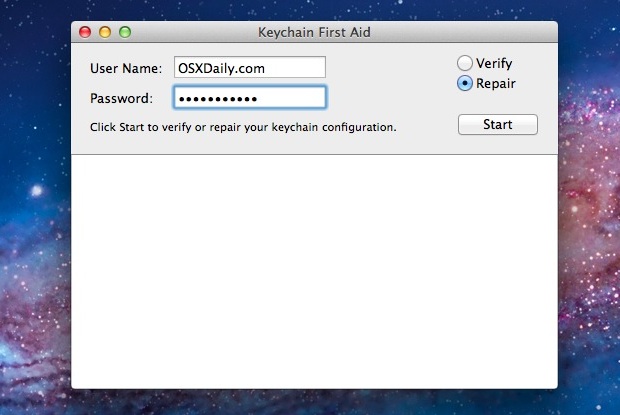
Is Safari no longer remembering logins and passwords? Is Mail.app asking for a password every time you launch the app and try to check or send mail, despite the fact that you’ve entered login credentials over and over? When a Mac app no longer remembers password and login data, it’s often the result of corrupted keychain files. This is easy to fix in three easy steps with Keychain Access first aid.
After keychain repairs are completed, exit out of Keychain Access and return to the application that wasn’t remembering the login and password information. You may be asked one more time for the login, but from this point on it should remember it. You can use the same fix when a Mac won’t remember wi-fi passwords, though forgetting networks is resolved through Repairing Permissions instead. This process will be the same for Mac OS X 10.6, OS X 10.7, and OS X 10.8. You are welcome to verify the keychain configuration before repairing it, but there’s little reason to not jump straight to the repair process.
|
| Diablo 3 Release Date Set for May 15 Posted: 15 Mar 2012 10:30 AM PDT
Gamers rejoice! Diablo 3, the highly anticipated action role-playing game, will be released on May 15 for both Mac and PC. Blizzard Entertainment has had the game in development seemingly forever (2001!), but it appears the long wait has been worth it. Gameplay is a mixture of dungeon crawling and hack-and-slash with RPG elements, there are five different character classes each with their own skillset, and there’s also a multiplayer PvP mode.
The expectations for Diablo 3 are quite high, but looking at gameplay videos and screen shots don’t disappoint with it’s gorgeous graphics and action packed style. This could easily wind up being the best major game release for the Mac platform this year, and gamers of all types should be anxiously awaiting it’s release.
Blizzard has a great record of releasing games simultaneously for both Mac OS X and Windows platforms, making it one of a few larger game companies to prioritize the Mac as an initial release platform. Diablo 3 will cost $59.99 and can be pre-ordered and even pre-downloaded directly from Blizzard via BattleNet.
|
| Posted: 15 Mar 2012 01:22 AM PDT
Early reviews of the new third generation iPad are starting to appear and they’re all pretty much glowing. Whether you’re still trying to figure out which model to get and where to buy one or you just want to pass the time until the FedEx truck arrives this Friday, take a peak at a handful of reviews below.
TechCrunch loves it:
Telegraph loves the screen and proclaims it the best tablet on the market:
New York Times provides the most critical review, though it’s still overall positive:
MacWorld suggests users of the iPad 2 will be fine without upgrading, as long as they don’t see the new Retina screen:
|
| How to Remotely Sleep a Mac from Anywhere with SSH or an iPhone Posted: 14 Mar 2012 02:33 PM PDT
Ever been away from your Mac and wished you could put it to sleep remotely? Maybe you accidentally left a Mac on at home or at work, or maybe you just left a Mac running so a download could complete. You don’t have to leave it running while you’re gone though, here are two different ways you can remotely sleep a Mac. The first method uses SSH and thus requires Terminal access, and the other uses just email which allows you to sleep a Mac with an iPhone or iPad just by sending a message from a verified email address. Remotely Sleep a Mac with SSHThe first method assumes knowledge of SSH and the Terminal and is more advanced than the email method mentioned below. You will need to enable SSH server on the target Mac beforehand for this to work, this can be done quickly through System Preferences > Network > Enable Remote Login. Make note of the Macs IP address too, that is what you’ll connect to it with.
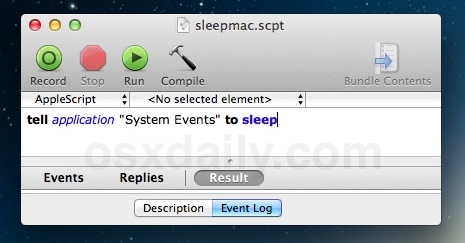
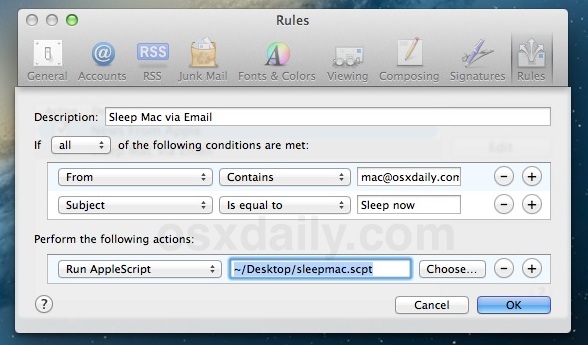
There is no warning or hesitation, the target Mac immediately goes to sleep and the SSH connection will die as a result. The main downside to this method is you’ll need access to an SSH client to activate the sleep method, these are widely available for Mac OS X (Terminal), Windows (PuTTY), and iOS (Prompt or MobileTerminal). If you don’t want to have to use SSH to sleep the Mac, you can also use put Macs to sleep remotely by sending an email, it takes a little bit more to set up though. Remotely Sleep a Mac with an iPhone via eMailThis may be the best method because you can put the Mac to sleep anytime by shooting off an email from an iPhone (or iPad 3G/4G). You will need to always have Mail.app running on the target Mac for this to work:
Verify everything is working by sending an email from the address you specified with the subject “Sleep now”, the Mac should sleep immediately. If it doesn’t work, verify the AppleScript was set up properly, and that the Rule set is configured properly and for the recipient inbox that Mail.app is configured for. With the ruleset shown in the screenshot above, any email sent from mac@osxdaily.com with the subject “Sleep now” will sleep the target Mac immediately. Both SSH and sleep through Mail have been tested to work on Macs running OS X 10.7 Lion and OS X 10.8 Mountain Lion, though there is no technical limitation and they should function identically in earlier versions of Mac OS X as well.
|





| You are subscribed to email updates from OS X Daily To stop receiving these emails, you may unsubscribe now. | Email delivery powered by Google |
| Google Inc., 20 West Kinzie, Chicago IL USA 60610 | |
0 comments:
Post a Comment