


OS X Daily: “How to “View Source” from Safari on an iPad or iPhone” plus 1 more |  |

| How to “View Source” from Safari on an iPad or iPhone Posted: 30 Mar 2012 01:58 PM PDT
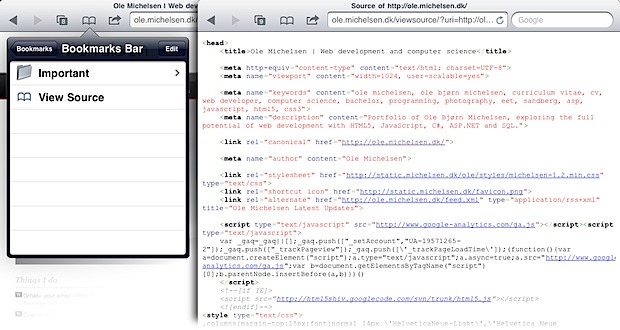
Ever wanted to view source of a webpage from an iPad or iPhone? Unfortunately, mobile Safari doesn’t include the feature on it’s own, but with the help of a custom bookmarklet you can view source of any web page right in iOS. This awesome tip comes from Michelsen.dk, and here’s how to set it up:
Now when you want to view a web pages source, open the Bookmarks menu and select “View Source”, the source code will appear in highlighted syntax with clickable source urls. One thing to note is that the javascript being used here sends the page to the michelsen.dk server for processing, if you’re not comfortable with that there are other solutions out there but they won’t highlight the syntax and aren’t nearly as elegant overall. A similar tip utilizes an edited bookmark to let you run Firebug with Mobile Safari on an iPhone or iPad too, which may be a bit more useful for developers. Found via ShawnBlanc on Twitter, you can follow us there too
|
| Send Multiple Photos from an iPhone or iPad Posted: 30 Mar 2012 12:34 PM PDT
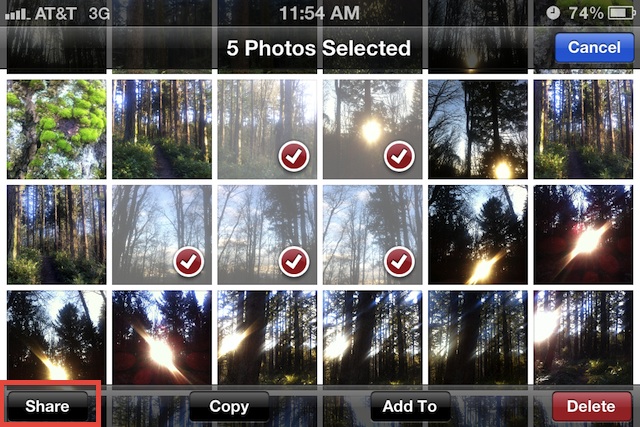
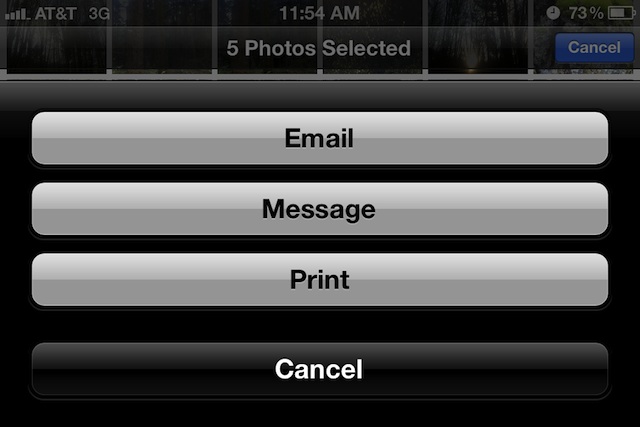
Sending out multiple photos at the same time from an iPhone, iPad, or iPod touch is easy and intuitive, here’s how to do it:
To get around the five picture limit of sending through email, choose the “Message” option instead of email, this will use the iMessage protocol but it does require that iMessage is set up on the sending and receiving devices. Using the Message option also lets you send the pictures to a Mac with iMesssage. Messages requires iOS 5 or later, meaning earlier model iOS devices won’t be able to use the feature.
|

| You are subscribed to email updates from OS X Daily To stop receiving these emails, you may unsubscribe now. | Email delivery powered by Google |
| Google Inc., 20 West Kinzie, Chicago IL USA 60610 | |
0 comments:
Post a Comment