


OS X Daily: “Disable “Top Sites” in Safari” plus 3 more |  |

- Disable “Top Sites” in Safari
- Easily Create Beautiful iOS App Icons with this DIY Retina Icon Kit
- How to “Find On Page” on an iPhone with Safari
- Quickly Transfer .mobi & ePub eBook Files to an iPad for Easier Viewing
| Posted: 26 Mar 2012 10:51 AM PDT
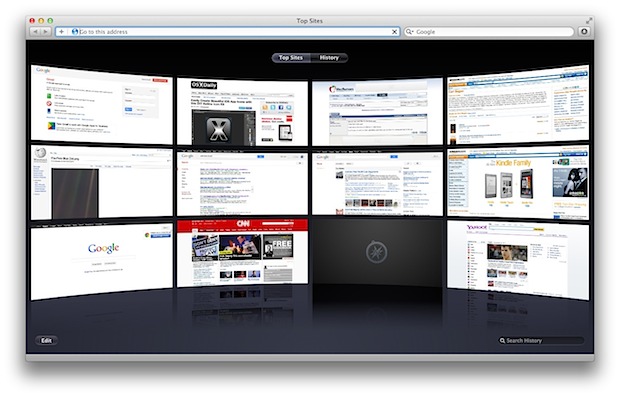
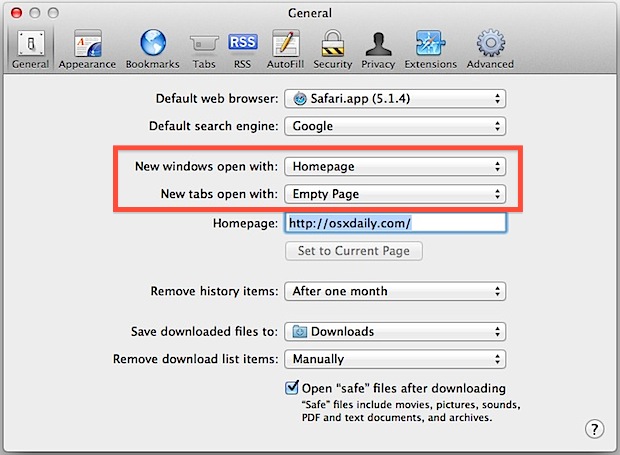
New windows and tabs in Safari default to displaying a 3×4 grid of “Top Sites”, representing the web sites you visit the most often. This can make for a nice home page, but sometimes it will display sites you don’t want showing up, and it can also slow down Safari on older computers. For those that use Safari as their default browser, speed it up and avoid any potential embarrassment by disabling “Top Sites” from appearing in new windows and tabs:
If you want Safari to be as fast as possible, choose “Empty Page” as both options, though we certainly won’t complain if you set http://osxdaily.com as your home page. Anyway, open a new tab or window to confirm the change has taken place. You can always get Top Sites back by selecting it again in the same preference panel, though
|
| Easily Create Beautiful iOS App Icons with this DIY Retina Icon Kit Posted: 26 Mar 2012 08:07 AM PDT
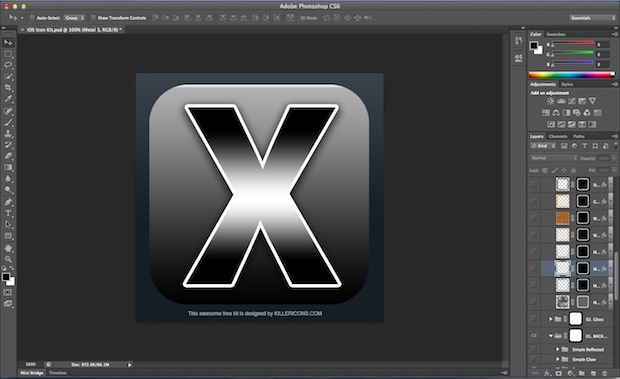
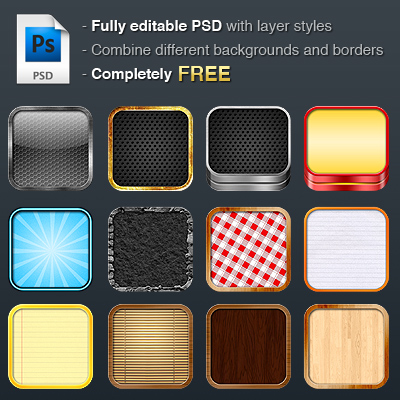
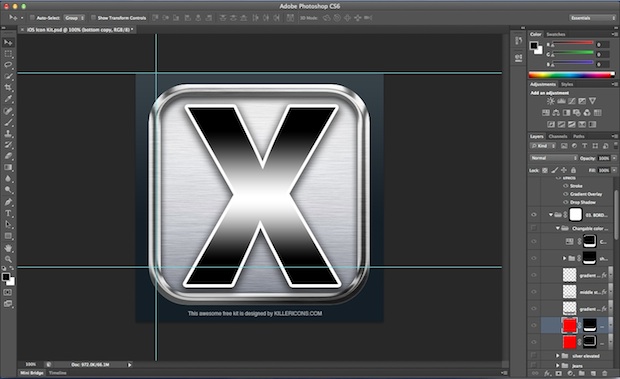
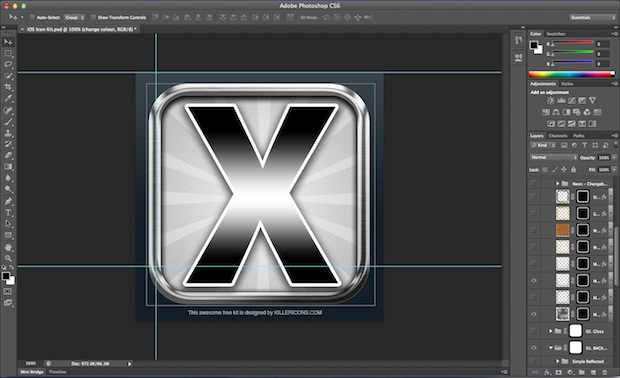
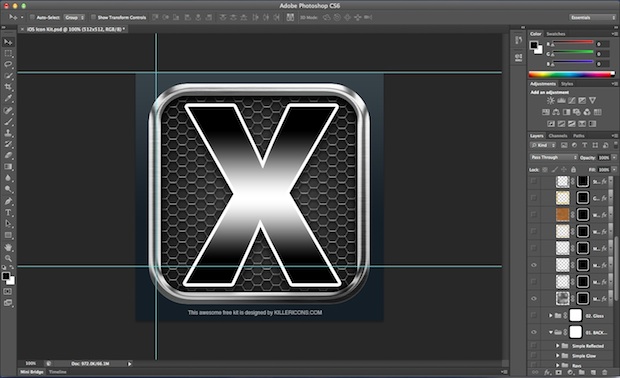
It’s rare that app developers and web developers double as graphic designers, leaving some apps and websites to include fairly hideous iOS icons. As we’ve said before, icons matter, however superficial they may be, so instead of shipping an app or site with an ugly icon do yourself a favor and download this do-it-yourself retina icon kit. The DIY template from KillerIcons comes as a deeply layered and easily workable PSD file containing a 512×512 app icon, letting you easily create a very attractive icon just by switching on or off some layers, adding an element or two, and adjusting as necessary. PSD’s are best opened with Photoshop, but if you don’t have it go ahead and download CS6 beta for free and use it until the final version comes out, the template works fine. These icon templates are useful website owners as well, use them to create an Apple touch icon PNG file to set as a custom bookmark icon for iOS home screens. Shown below are the base template styles, but the possibilities are practically endless just by changing colors, borders, or hiding and showing certain layers.
You can see several sample retina icons I made quickly for OSXDaily below.
There are also some more basic retina icon templates available if you are looking to start from scratch or just want something less fancy.
|
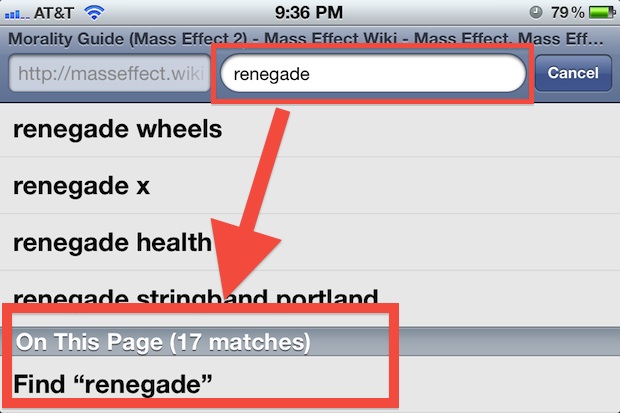
| How to “Find On Page” on an iPhone with Safari Posted: 26 Mar 2012 06:19 AM PDT It’s easy to find text on a page with a desktop browser, with just a keyboard shortcut you’ll have a search field. This is a bit different in the world of smaller mobile screens though, and if you need to find text on a current web page with Safari for iPhone or iPod touch you’ll need to do the following instead:
After you type “Find” the matched search terms will be highlighted in yellow, just like in Safari on Mac OS X or Windows. When finished tap on the blue “Done” button and the search phrase will no longer be highlighted.
This is the same for iPhone and iPod touch, though it’s a bit easier on the iPad, where the Find On Page item is attached to the top of the onscreen iOS keyboard. With Apple simplifying the Safari UI within OS X Mountain Lion to include an omnibar, we should probably expect this feature in iOS to change slightly with it and adopt the same omnibar. If that happens, chances are you’ll just tap in the universal bar to perform the same functionality.
|
| Quickly Transfer .mobi & ePub eBook Files to an iPad for Easier Viewing Posted: 25 Mar 2012 07:03 PM PDT
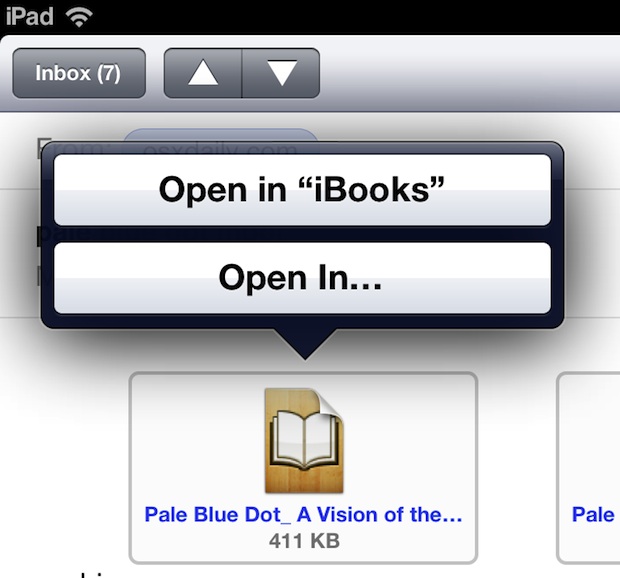
Have some ePub and mobi ebooks that you want transferred over from a Mac or PC to an iPad for easier mobile reading? The quickest way to do this is through email, but before getting started make sure you have the free Kindle app installed on the iPad to read and open mobi files (App Store link), and the free iBooks app installed to read ePub and other ebook formats (App Store link). With the app side of things taken care of, here’s the simplest way to move an ebook from a computer to an iPad:
The ebook will then open in either iBooks or Kindle app, depending on the file type.
If you prefer one app or book format over the other, you can manually convert the ebook format using a free tool like Calibre on a Mac or PC, though there can be issues with formatting for some ebooks with complex layouts. Technically you can sync ebooks from the iTunes application and even open them with DropBox, but I find email to be the fastest solution that requires the least effort. This is aimed at iPad users, but the process is the same for iPhone and iPod touch as well.
|


| You are subscribed to email updates from OS X Daily To stop receiving these emails, you may unsubscribe now. | Email delivery powered by Google |
| Google Inc., 20 West Kinzie, Chicago IL USA 60610 | |
0 comments:
Post a Comment