


OS X Daily: “Convert MKV to M4V for Free with Subler” plus 1 more |  |

| Convert MKV to M4V for Free with Subler Posted: 23 Mar 2012 10:12 AM PDT
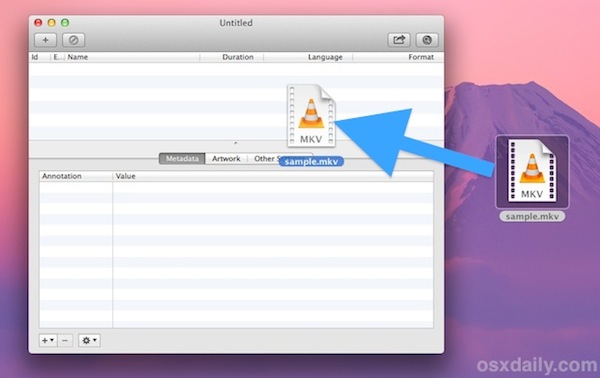
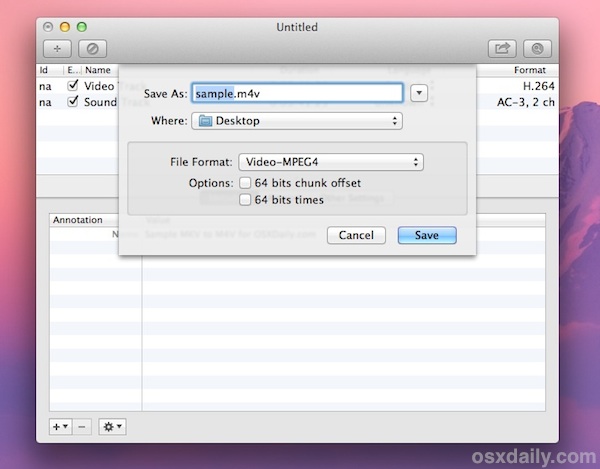
If you have MKV movie files you’ve probably noticed they can’t be played on an iPad, iPhone, Apple TV, or a variety of other players. Not to worry though, because MKV video can be easily converted to the compatible M4V format using a free tool called Subler. If you want to get technical, this isn’t actually converting the video because MKV files are packages, basically Subler just repackages the MKV into an M4V, which can then be played in iOS and elsewhere. Anyway, it’s easy to use and very fast, we’ll walk you through the entire process. Converting MKV Video to M4V with SublerSubler relies on Perian to work properly, if you don’t have Perian yet be sure to download that before beginning.
You’ll see a “Saving” progress but Subler works very quickly, you shouldn’t have to wait long for the repackage regardless of the origin MKV video size. The resulting M4V video can now be synced through iTunes to an iPad, iPhone, or iPod touch, played directly on an Apple TV, or watched on any other device or app that supports M4V. On a side note, converting MKV to M4V isn’t necessary if you want to watch the movie directly on your computer, in that case, check out a handful of free MKV video players for Mac. If you need to convert other video types to iOS compatible format, Handbrake works great for that. Thanks to Anthony and others who recommended Subler in the comments.
|
| Check How Much Storage Space is Used & Available on an iPad, iPhone, or iPod touch Posted: 22 Mar 2012 01:15 PM PDT
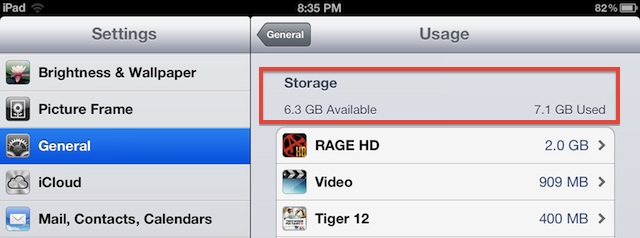
To find how much storage space is available and used on an iPad, iPhone, or iPod touch, look in the Settings application:
Scrolling further down you’ll find how much space individual apps use, most are reasonably small but some games like Rage HD are enormous. If you don’t find yourself using the largest apps, you can always delete them now and redownload them anytime in the future. The Videos app shows a combined total of video storage on the iOS device, if you’re experiencing capacity issues you may want to remove individual videos that you have already watched, as each one can take up quite a bit of space as well.
|

| You are subscribed to email updates from OS X Daily To stop receiving these emails, you may unsubscribe now. | Email delivery powered by Google |
| Google Inc., 20 West Kinzie, Chicago IL USA 60610 | |
0 comments:
Post a Comment