


OS X Daily: “Set Archives to Automatically Delete After Expansion in Mac OS X” plus 1 more |  |

| Set Archives to Automatically Delete After Expansion in Mac OS X Posted: 05 Apr 2012 06:59 AM PDT
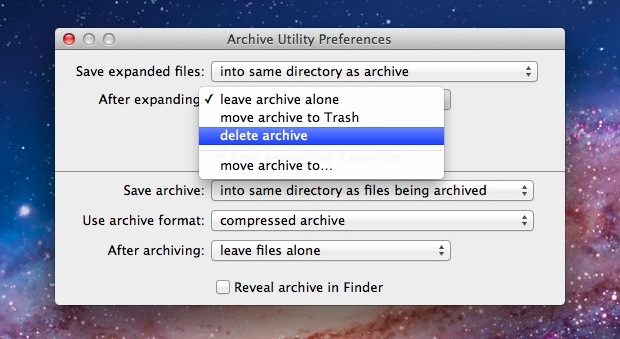
Archives can be deleted automatically after expansion with the help of a hidden preference panel in Mac OS X. Here’s how to find and enable this setting:
Newly extracted archives will now delete themselves, making this a perfect solution for those of us who don’t want a Downloads folder full of leftover .zip files. If you’re not comfortable with the archives being automatically deleted, a happy medium is to choose “move archive to Trash” from the pulldown menu instead. This will place leftover zips into Trash but not actually delete them without user input.
|
| Deposit a Check Directly From an iPhone Posted: 04 Apr 2012 03:35 PM PDT
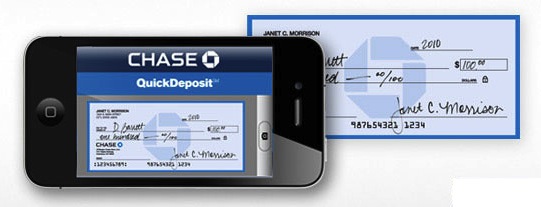
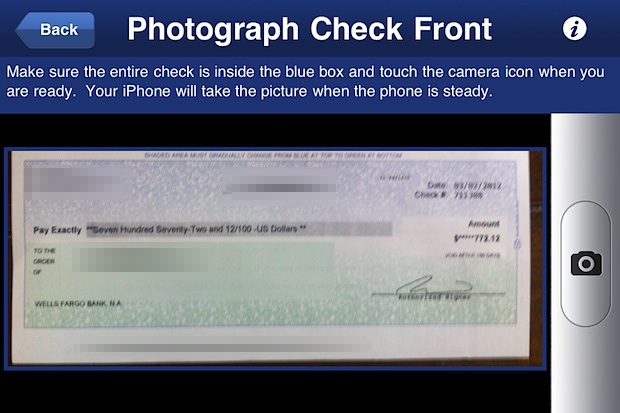
Skip the traffic filled bank trip across town, you can deposit checks directly from an iPhone. A variety of major US banks now offer the iPhone check depositing service, including Chase, Fidelity, US Bank, PayPal, and Charles Schwab, amongst others. I recently used the service through Chase Mobile, where it worked well enough to quickly become my preferred method of depositing checks. If you have a Chase account:
It’s really that simple, the first time using the app takes about 3 minutes from start to finish but once it’s configured it’s even quicker to use again.
The deposit will show up in the account immediately but it will be labeled as pending until it’s ready, and that brings us to the only real downside to depositing checks this way: it takes a few days for the check to clear. Just how long the wait time is seems to vary by the checks issuing bank, but it can take anywhere from a day to five days depending on a variety of factors. In my test, I deposited a check and had access to the funds in three days, but your experience may differ. For this reason, if you need immediate access to cash it’s probably best to visit the physical bank location, but if you don’t mind waiting a day or two, it’s incredibly convenient and beats a traffic filled trek across town any day. If you don’t have Chase, mobile deposit apps for Charles Schwab, US Bank, Fidelity, Citi, and PayPal are free for iPhone and Android users, and Bank of America, Wells Fargo, and others are said to be offering the service soon too. Hopefully more banks and credit unions are to follow, it’s a great feature that will likely start to sway users to open accounts at one institution over another.
|
| You are subscribed to email updates from OS X Daily To stop receiving these emails, you may unsubscribe now. | Email delivery powered by Google |
| Google Inc., 20 West Kinzie, Chicago IL USA 60610 | |
0 comments:
Post a Comment